Report publications
Note
Every member is responsible for submitting their own publications. Do not wait for someone else to add your work. If a publication is not in the pool, it will not appear in the consortium publication overview on the website.
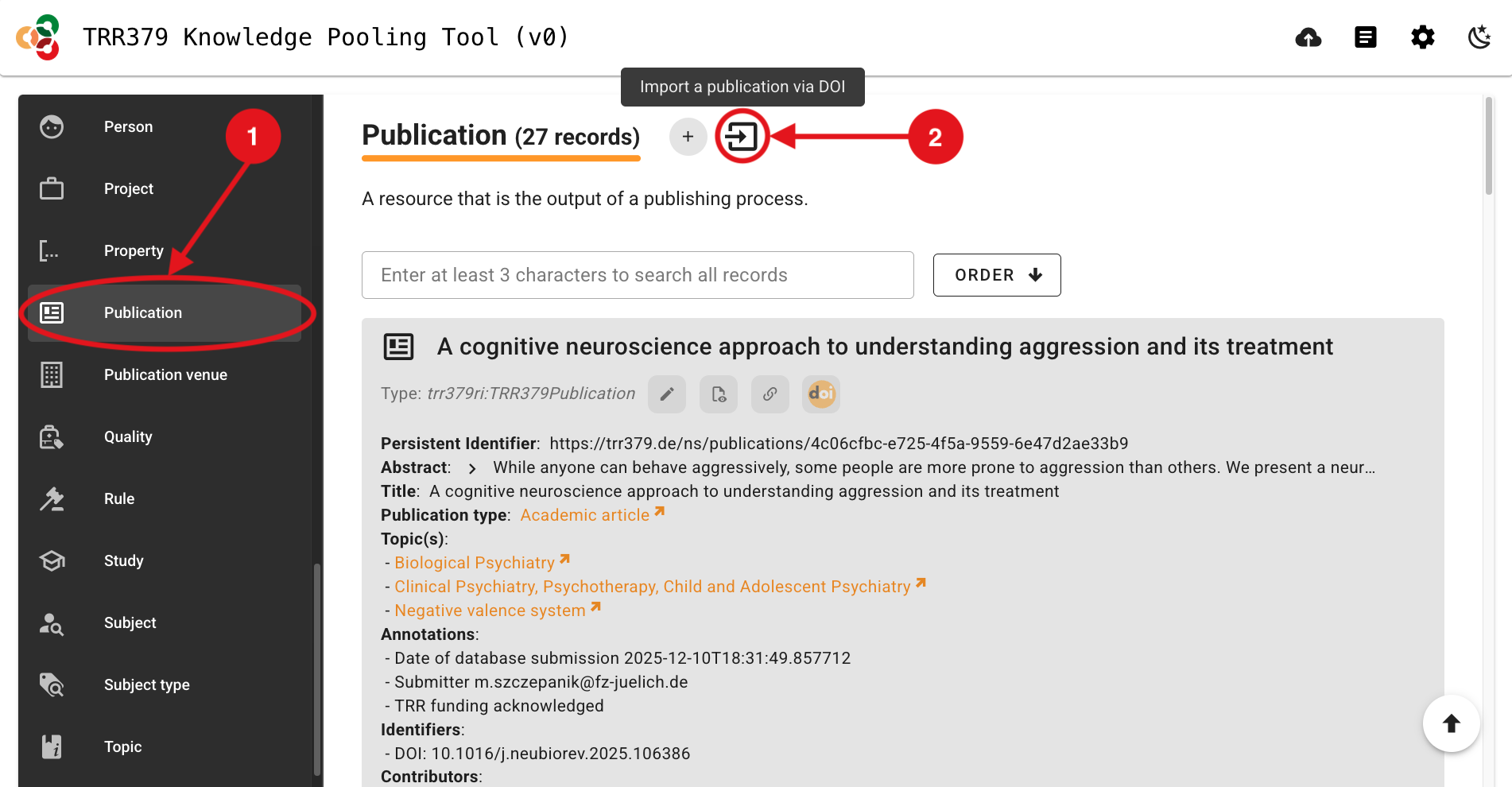
Navigate to the knowledge pooling tool.
Select the “Publication” Data Type on the left side of the page.
Select the “Import a publication via DOI” button (square icon with right-facing arrow, just to the right of the
+plus button).
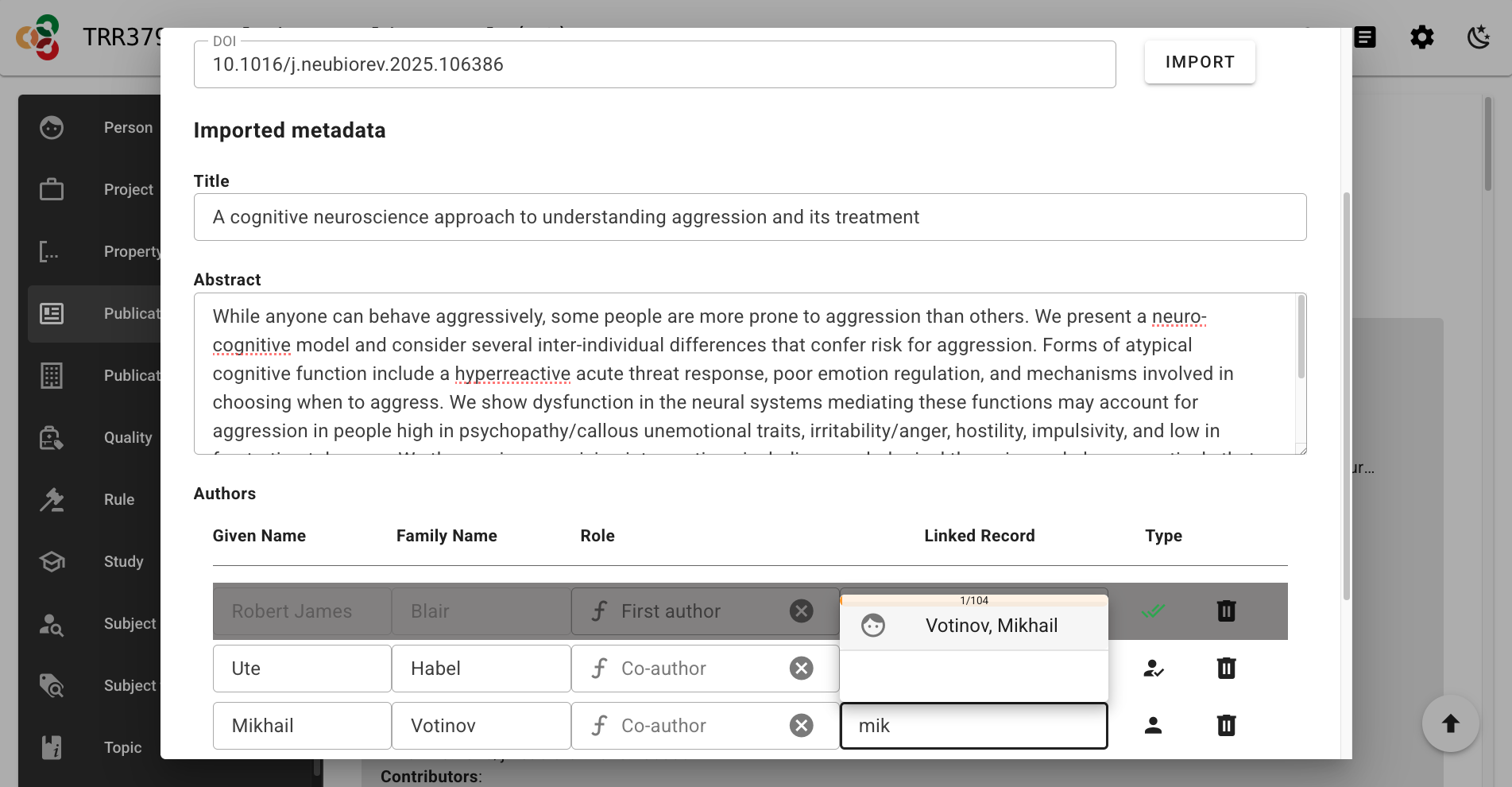
- Enter the DOI, and select “IMPORT”. A new section should appear showing the imported metadata. If you receive an error message that the record already exists, follow the instructions to edit the existing record instead of importing a new one.
Note
Enter just the DOI without the URL part (i.e., 10.1016/j.neubiorev.2025.106386 and not https://doi.org/10.1016/j.neubiorev.2025.106386)
- Confirm, add, or edit the Title, Abstract, and Authors as necessary. For authors that are not automatically linked upon import to Person records in the pool, you can click and search directly in the “Linked Record” column to find a corresponding Person record in the pool; if no linked record is selected, a new Person record will be created for that author. Click “SAVE” when everything looks correct.
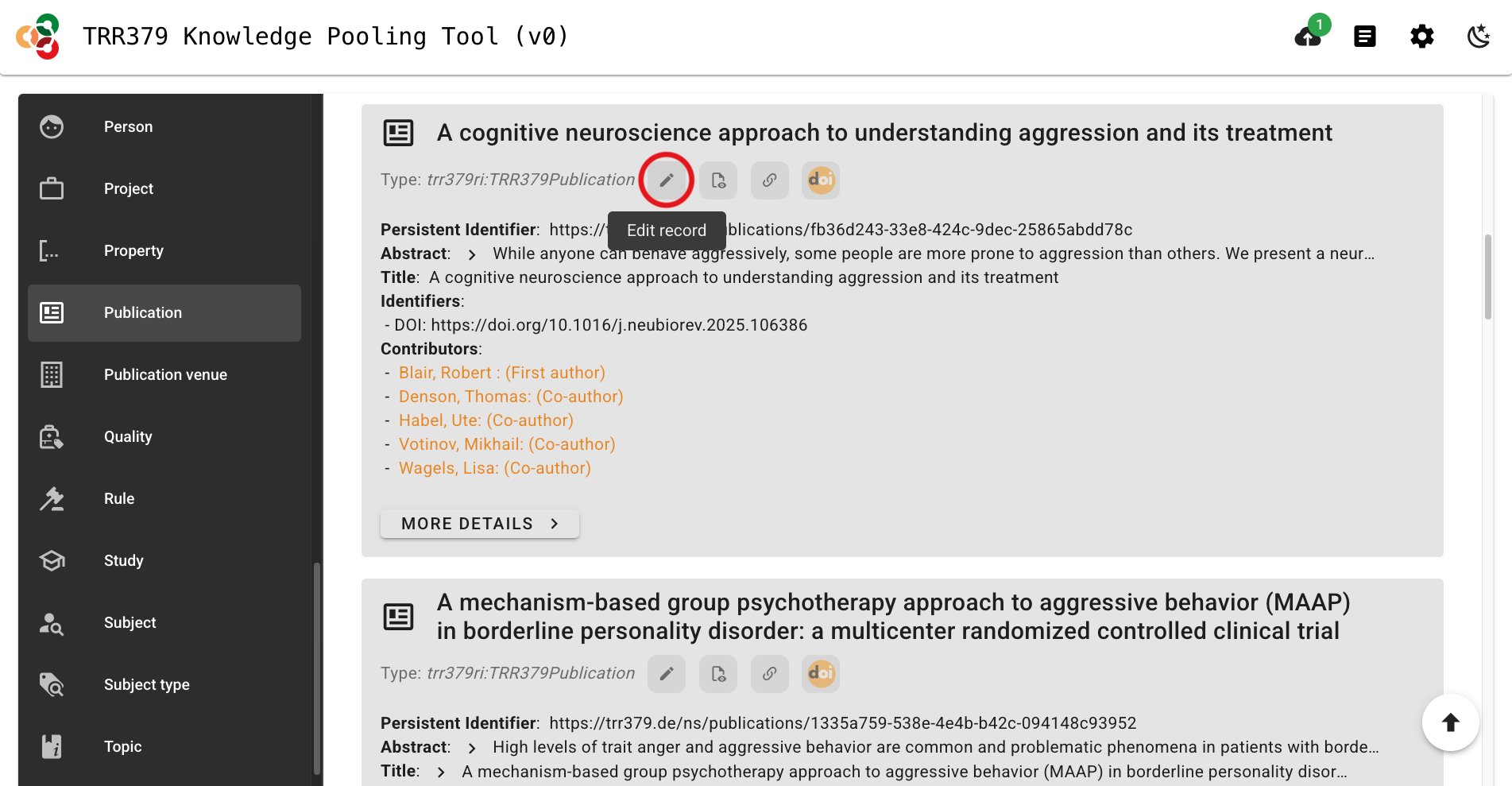
- Navigate to your new Publication record in the pool’s Publication records list, and click the pencil icon to edit it.
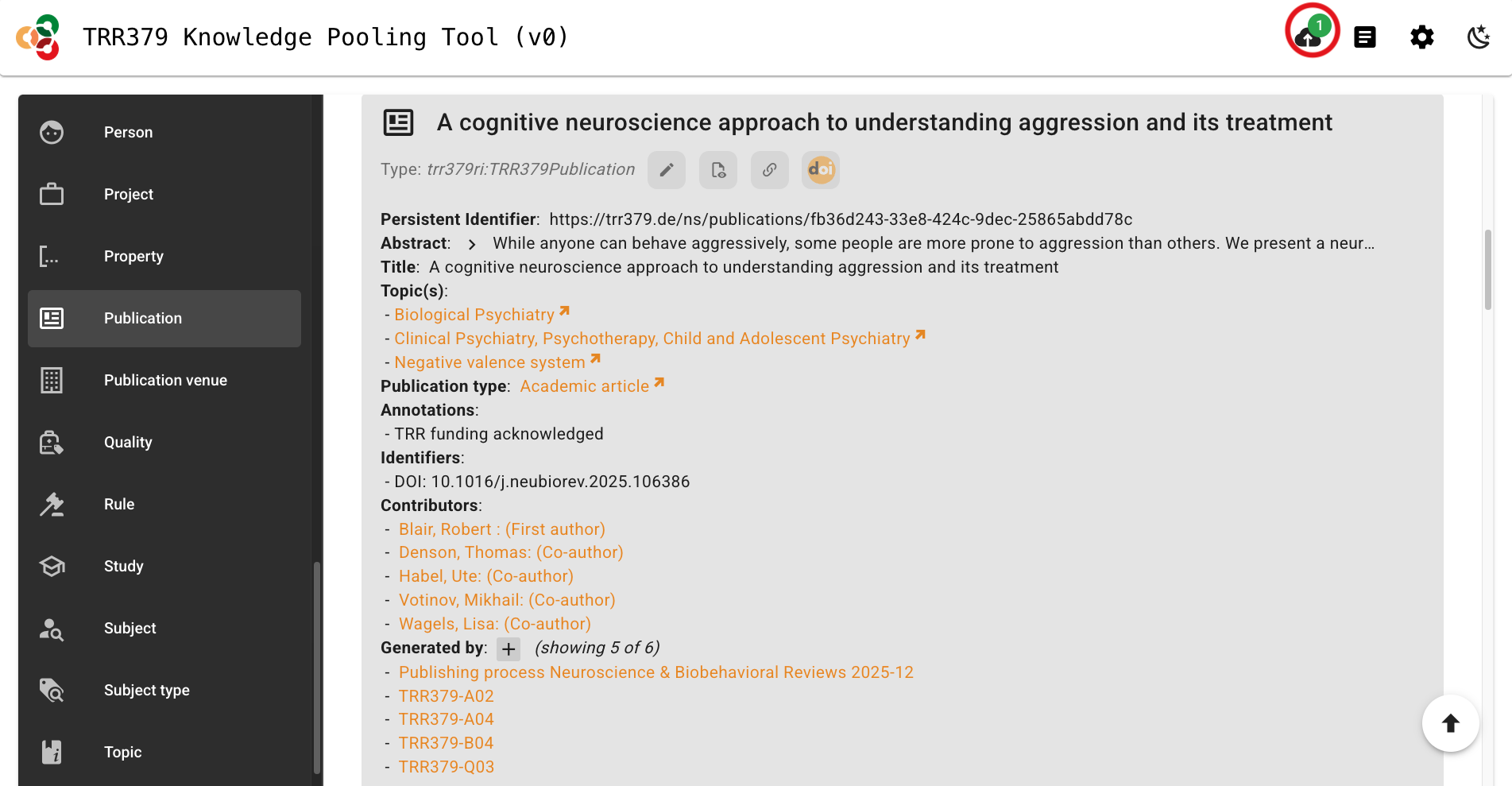
- For publications to make the best impressions and live up to their fullest metadata potential, proceed to add relevant information to complete the Publication record as follows:
- Once all relevant information has been entered, click “SAVE” in the top-right corner to save the Publication record. After saving, a well-curated publication record links to its authors, topics, and projects.
- Click the “Submit” button (cloud icon, top-right), which should show a green notification dot to indicate changes are ready to be submitted.
Important note about saving versus submitting
The pool has two separate actions: saving and submitting. Saving stores your work in the browser only! It does not submit the record to the server for use by the consortium workflows. To submit, click the Submit button (cloud icon, top-right corner) when there is a green notification dot indicating records are ready for submission. Do not close your browser tab before submitting, or your data will be lost.
- The interface will list all records you are about to submit. You should see your Publication record here.
- Click “Submit”. A confirmation message will appear when submission is successful. If an error occurs, note the message and retry. If it persists, you may wish to review common error messages or reach out for help via the resources on the Support page.