Generate an access token on the Hub

  1. Visit the TRR379 collaboration hub and log in with your credentials. If you do not have an account, see instructions on how to get a Hub account and log in and to configure your permissions.

  2. Click your avatar in the top-right corner, and navigate to Settings > Applications.

  3. Under Access tokens click New access token, and fill in the form:

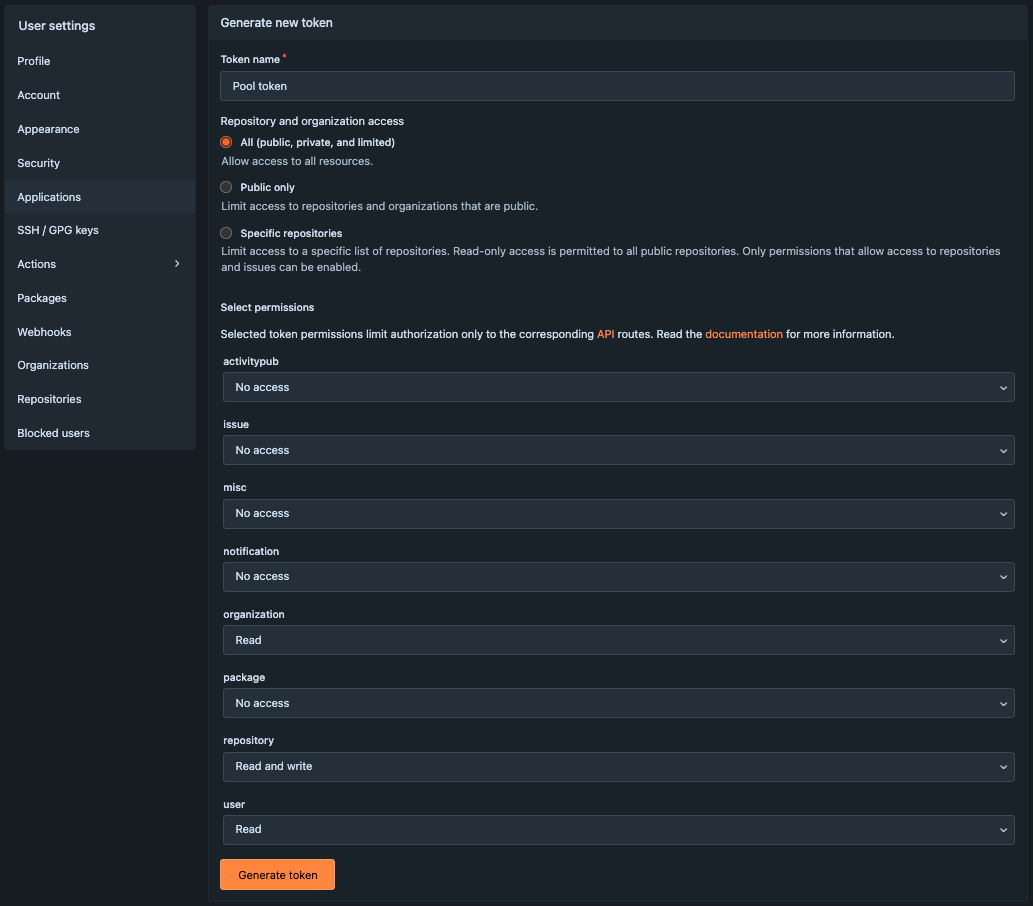
    • Give the token a recognizable name (e.g., “Pool token”)
    • Choose All for Repository and organization access
    • Under Select permissions, enable: organization: Read, repository: Read and write, and user: Read.
  4. Click Generate token.

User settings screen display for generating a token to grant access to your account using the Forgejo API. The Token name Pool token has been given. All (public, private, and limited) is selected for Repository and Organization Access. The remaining options are defined as follows: activitypub:No access, issue:No access, misc:No access, notification:No access, organization:Read, package:No access, repository:Read and write, user:Read. An orange Generate token button shows at the bottom. User settings screen display for generating a token to grant access to your account using the Forgejo API. The Token name Pool token has been given. All (public, private, and limited) is selected for Repository and Organization Access. The remaining options are defined as follows: activitypub:No access, issue:No access, misc:No access, notification:No access, organization:Read, package:No access, repository:Read and write, user:Read. An orange Generate token button shows at the bottom.

  1. The token appears as a long string. Copy the generated value immediately, and store it safely. It disappears after refreshing.
Important

Treat your token like a password; do not share it publicly. Once generated, the same token can be reused for all future sessions.