Accounts & Access

The TRR379 collaboration platform (or “Hub” for short) is the platform for code and large dataset collaboration, and where access tokens for the knowledge pooling tool are generated. The Hub runs an enhanced version of the Forgejo software.

Access to the knowledge pooling tool is managed using tokens and Forgejo teams. Forgejo-based authentication ensures that permissions are linked to existing institutional or project accounts. Tokens are used to identify users interacting with the API or web UI. Only users with a valid access token can add or edit records.

Follow the guides below to create and configure your Hub account with appropriate permissions and generate an access token.

Subsections of Accounts & Access

Get a Hub account and log in

An account is required for working with the TRR379 collaboration platform on Forgejo. You can sign in using “GitLab Aachen” Single Sign-On (SSO) (preferred) or request an account manually.

Single sign-on using GitLab Aachen

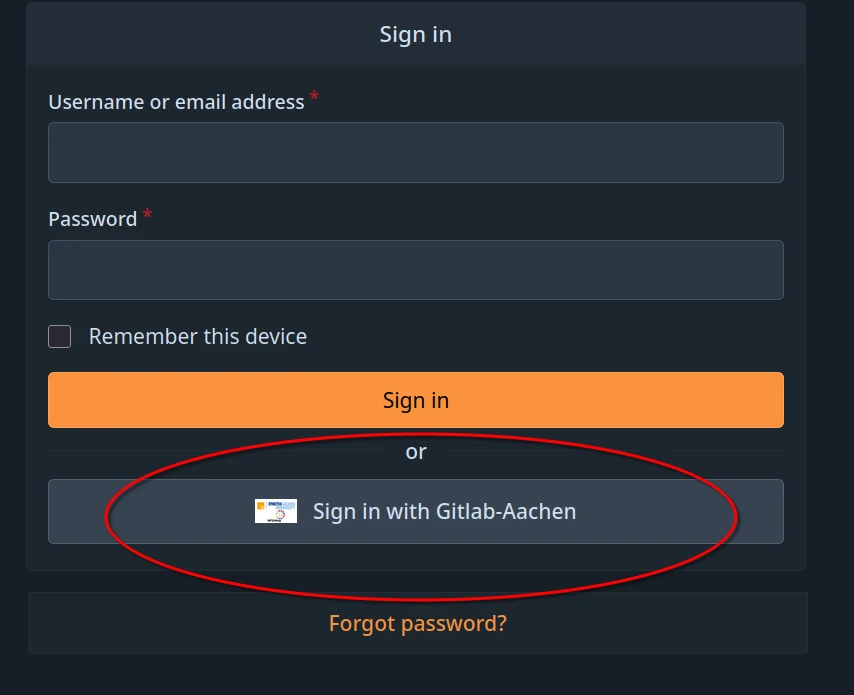
  1. Visit the TRR379 collaboration hub and click Sign in with Gitlab-Aachen on the login page.

Sign in screen for TRR379 collaboration hub, with the Sign in with Gitlab-Aachen button circled in red. Sign in screen for TRR379 collaboration hub, with the Sign in with Gitlab-Aachen button circled in red.

  1. Log in using your preferred identity provider (i.e., GitHub or your affiliated organization via DFN-AAI SSO) and follow the on-screen instructions to activate your account.
  2. Visit the confirmation link that will be sent to the email address associated with the account.
Important

If you are using a private account to register (e.g., GitHub, Google, etc.), please email trr379@lists.fz-juelich.de after you registered, explaining your institutional affiliation and relationship with TRR379. If anyhow possible, institutional emails/accounts should be used.

Manual request

In order to obtain an account manually, email trr379@lists.fz-juelich.de. Please email from an institutional email, and CC the respective TRR379 project lead. In the email, mention any projects and/or organizations you require read or write access to.

Note

A manual request will not allow for using your institutional Single Sign-On (SSO).

Set up your Hub account permissions

To access and report records using the knowledge pooling tool, you must have read and write access to the protected collection on the TRR379 collaboration platform. You must be a member of both:

  1. To confirm your team memberships, sign into the Hub (see also Get a Hub account and log in).
  2. Navigate to both of the following links to view the team members:
  1. If you are unable to see a repository or team member list, or if your user name is not listed, please proceed to request access.
  2. Request access to protected team(s)

Generate an access token on the Hub

  1. Visit the TRR379 collaboration hub and log in with your credentials. If you do not have an account, see instructions on how to get a Hub account and log in and to configure your permissions.

  2. Click your avatar in the top-right corner, and navigate to Settings > Applications.

  3. Under Access tokens click New access token, and fill in the form:

    • Give the token a recognizable name (e.g., “Pool token”)
    • Choose All for Repository and organization access
    • Under Select permissions, enable: organization: Read, repository: Read and write, and user: Read.
  4. Click Generate token.

User settings screen display for generating a token to grant access to your account using the Forgejo API. The Token name Pool token has been given. All (public, private, and limited) is selected for Repository and Organization Access. The remaining options are defined as follows: activitypub:No access, issue:No access, misc:No access, notification:No access, organization:Read, package:No access, repository:Read and write, user:Read. An orange Generate token button shows at the bottom. User settings screen display for generating a token to grant access to your account using the Forgejo API. The Token name Pool token has been given. All (public, private, and limited) is selected for Repository and Organization Access. The remaining options are defined as follows: activitypub:No access, issue:No access, misc:No access, notification:No access, organization:Read, package:No access, repository:Read and write, user:Read. An orange Generate token button shows at the bottom.

  1. The token appears as a long string. Copy the generated value immediately, and store it safely. It disappears after refreshing.
Important

Treat your token like a password; do not share it publicly. Once generated, the same token can be reused for all future sessions.