Subsections of Using TRR379 Tools
Submit to the Knowledge Pool
The knowledge pooling tool is a platform for collecting, curating, and sharing structured information about research activities, outputs, and contributors across TRR379 projects and institutions.
The following workflows provide step-by-step guidance for submitting specific record types to the pool, but note that many of the steps are transferable to other record types:
Subsections of Submit to the Knowledge Pool
Create your contributor profile
TRR379 contributor profiles are automatically updated on the main website based on the knowledge pool. Follow these steps to create and/or edit your own profile, including uploading a portrait photo.
Navigate to the knowledge pooling tool.
Select the “Person” Data Type on the left side of the page.
Create a new record by clicking the
+(plus) button, or edit an existing record by clicking the pencil icon.
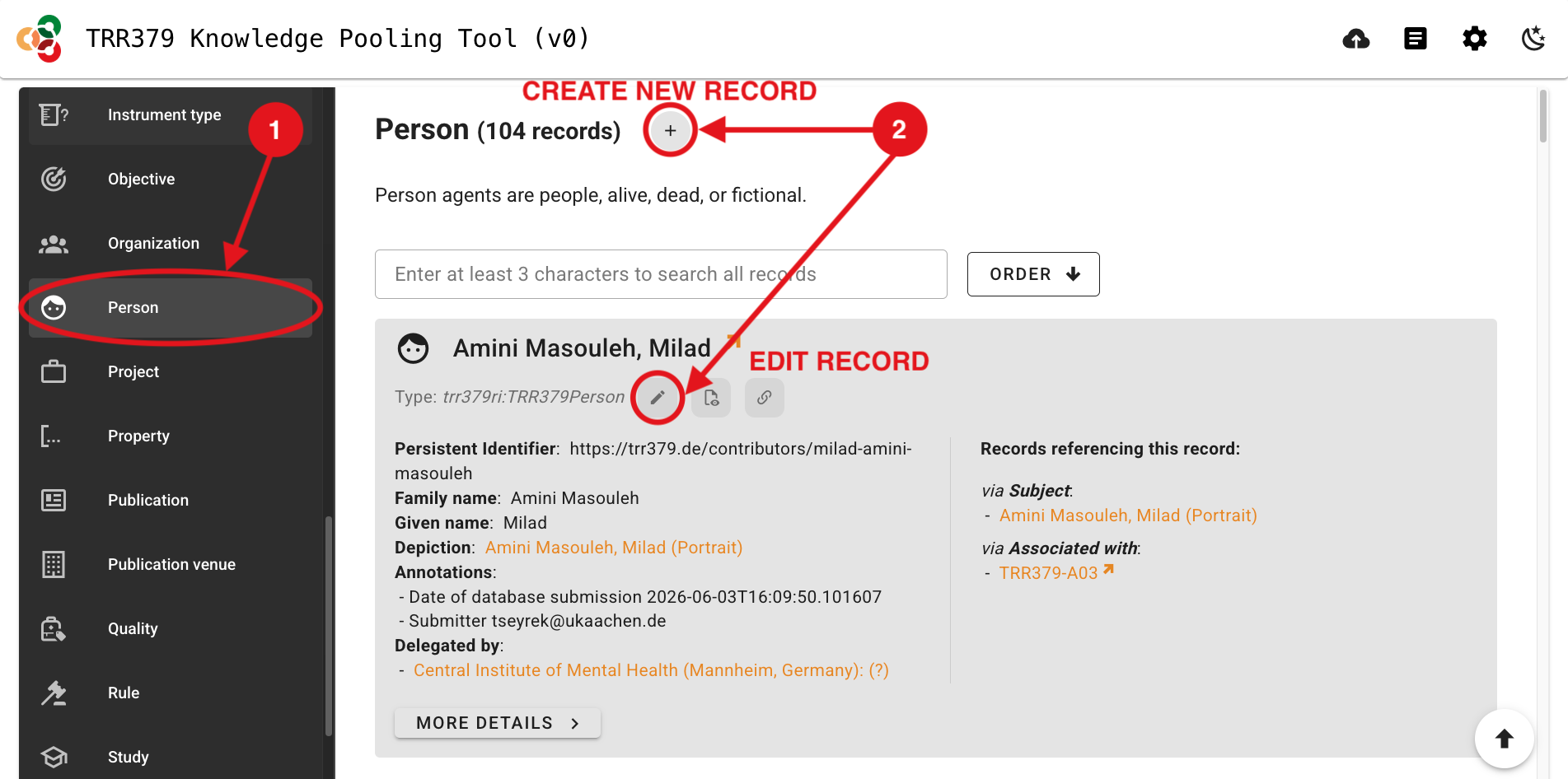
- To add a portrait photo, click the “Upload a depiction” Wizard button (person silhouette icon). Click the file attachment button (paperclip icon), and select the portrait image with your file browser. Wait for the green checkmark confirmation of a successful upload, and then click “SAVE”.
Important
Image requirements:
- Contributor portraits: maximum 400 pixels wide
- Page thumbnails: minimum 320 by 240 pixels, aspect ratio 4:3
- A single image can serve as both portrait and thumbnail if the face is centered
- Proceed to add relevant information to complete your contributor profile as follows:
- Once all relevant information has been entered, click “SAVE” in the top-right corner to save the Person record.
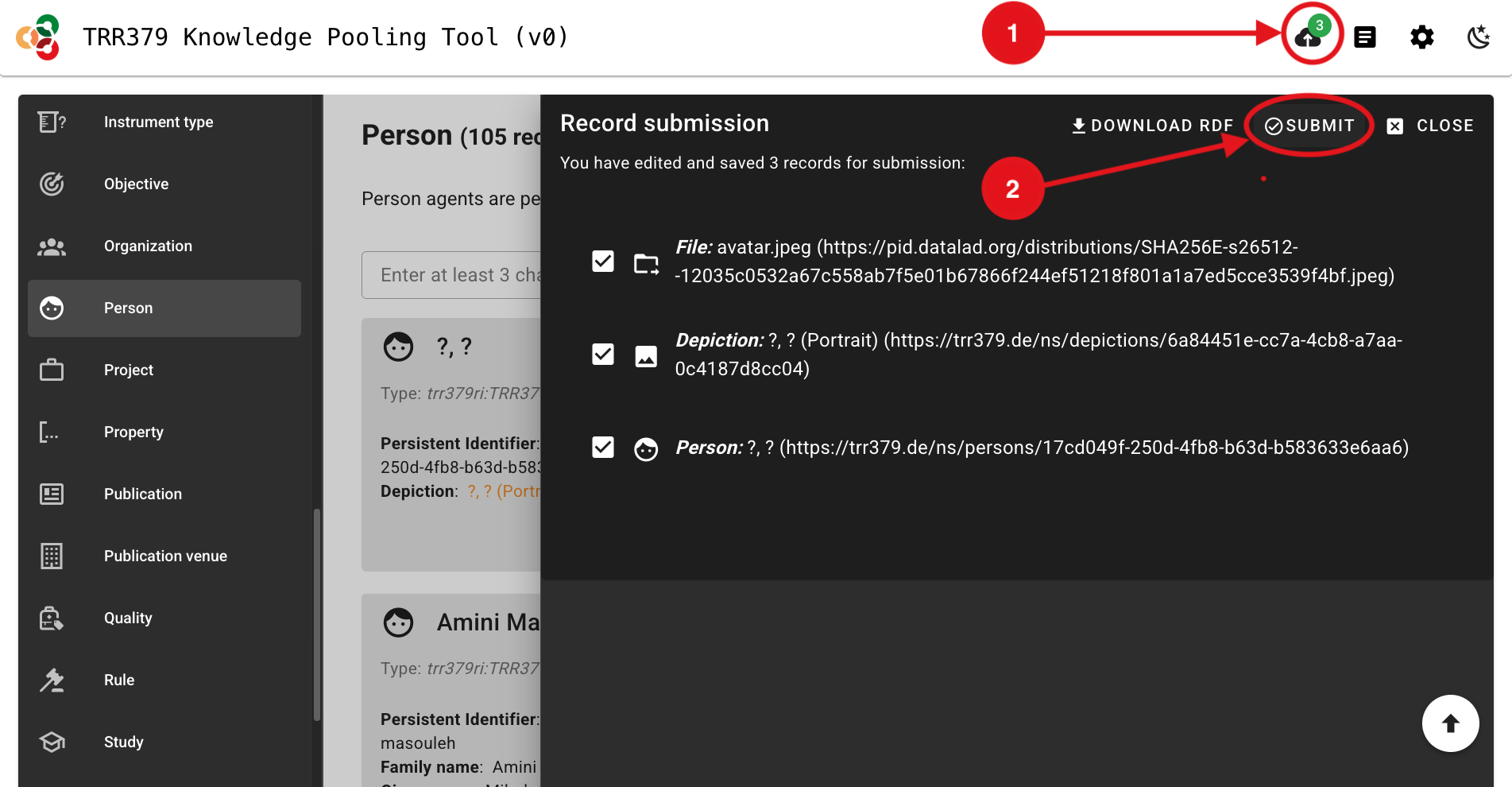
- Click the “Submit” button (cloud icon, top-right), which should show a green notification dot to indicate changes are ready to be submitted.
Important note about saving versus submitting
The pool has two separate actions: saving and submitting. Saving stores your work in the browser only! It does not submit the record to the server for use by the consortium workflows. To submit, click the Submit button (cloud icon, top-right corner) when there is a green notification dot indicating records are ready for submission. Do not close your browser tab before submitting, or your data will be lost.
- The interface will list all records you are about to submit. For a contributor profile with a profile photo, you should see three records: a File, a Depiction, and a Person.
- Click “Submit”. A confirmation message will appear when submission is successful. If an error occurs, note the message and retry. If it persists, you may wish to review common error messages or reach out for help via the resources on the Support page.
Report publications
Note
Every member is responsible for submitting their own publications. Do not wait for someone else to add your work. If a publication is not in the pool, it will not appear in the consortium publication overview on the website.
Navigate to the knowledge pooling tool.
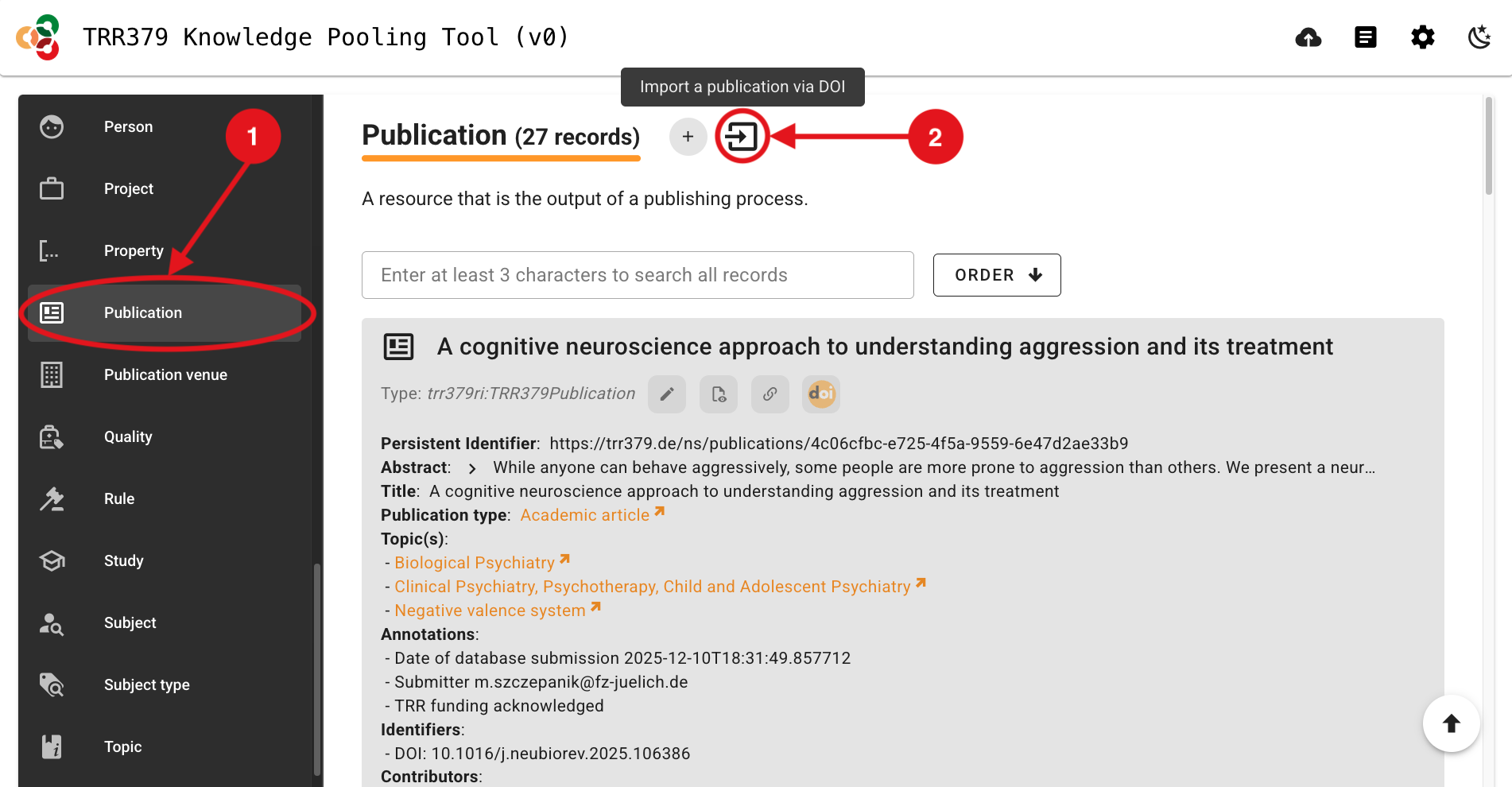
Select the “Publication” Data Type on the left side of the page.
Select the “Import a publication via DOI” button (square icon with right-facing arrow, just to the right of the
+plus button).
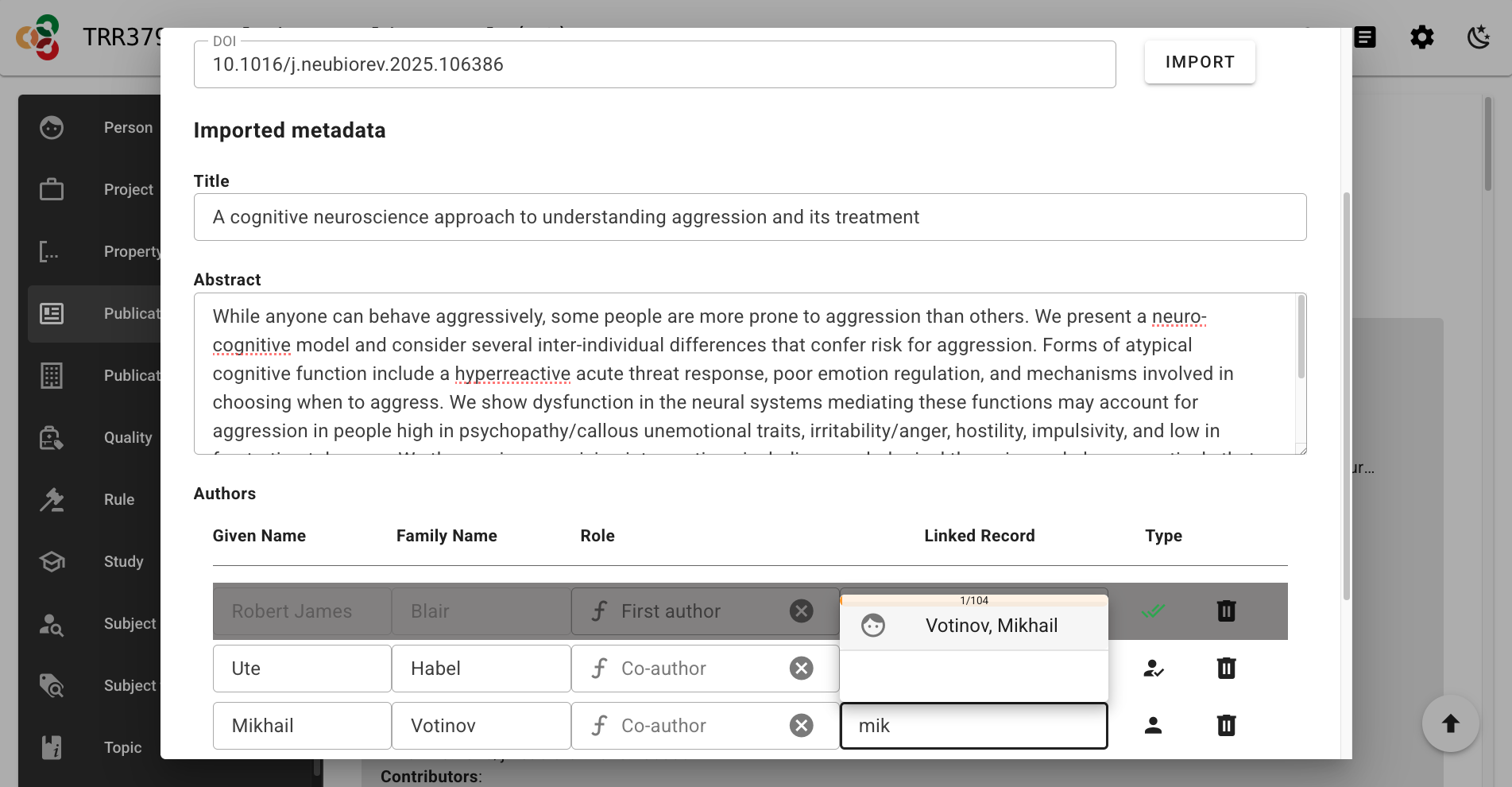
- Enter the DOI, and select “IMPORT”. A new section should appear showing the imported metadata. If you receive an error message that the record already exists, follow the instructions to edit the existing record instead of importing a new one.
Note
Enter just the DOI without the URL part (i.e., 10.1016/j.neubiorev.2025.106386 and not https://doi.org/10.1016/j.neubiorev.2025.106386)
- Confirm, add, or edit the Title, Abstract, and Authors as necessary. For authors that are not automatically linked upon import to Person records in the pool, you can click and search directly in the “Linked Record” column to find a corresponding Person record in the pool; if no linked record is selected, a new Person record will be created for that author. Click “SAVE” when everything looks correct.
- Navigate to your new Publication record in the pool’s Publication records list, and click the pencil icon to edit it.
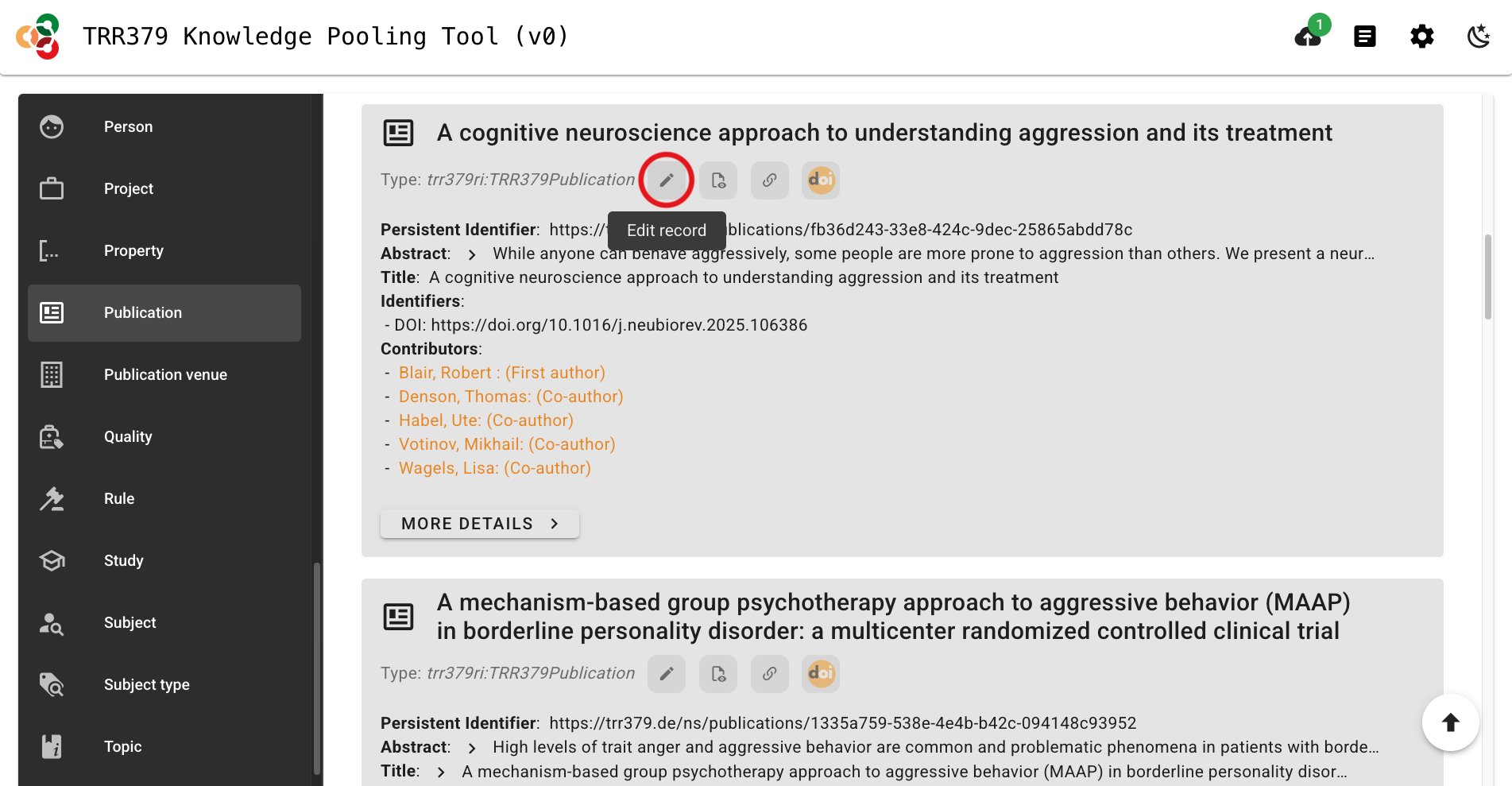
- For publications to make the best impressions and live up to their fullest metadata potential, proceed to add relevant information to complete the Publication record as follows:
- Once all relevant information has been entered, click “SAVE” in the top-right corner to save the Publication record. After saving, a well-curated publication record links to its authors, topics, and projects.
- Click the “Submit” button (cloud icon, top-right), which should show a green notification dot to indicate changes are ready to be submitted.
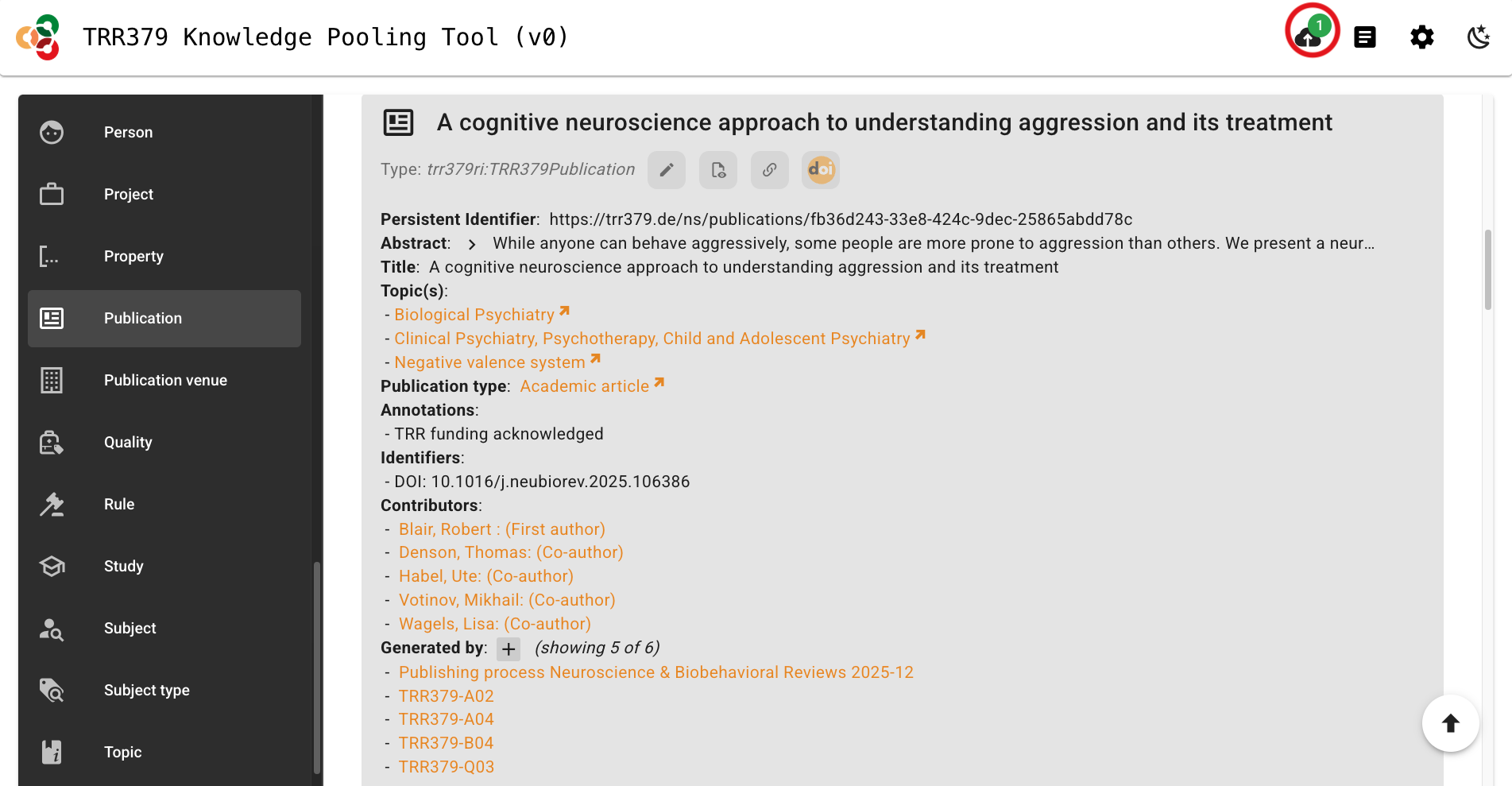
Important note about saving versus submitting
The pool has two separate actions: saving and submitting. Saving stores your work in the browser only! It does not submit the record to the server for use by the consortium workflows. To submit, click the Submit button (cloud icon, top-right corner) when there is a green notification dot indicating records are ready for submission. Do not close your browser tab before submitting, or your data will be lost.
- The interface will list all records you are about to submit. You should see your Publication record here.
- Click “Submit”. A confirmation message will appear when submission is successful. If an error occurs, note the message and retry. If it persists, you may wish to review common error messages or reach out for help via the resources on the Support page.
Document instruments and questionnaires
TRR379 uses the knowledge pool to document research instruments and questionnaires, and to provide standardized identifiers that can be used when harmonizing data across sites.
You can document an instrument at different levels. In particular, questionnaires can be documented as:
- the original instrument or questionnaire,
- a TRR379-specific version or variant,
- individual questionnaire items, and
- where useful, site-specific versions of an instrument or item.
These records can be linked to one another to expose the relationships between the original instrument, TRR379 versions, and individual questionnaire items.
You do not need to complete every level or every metadata field at once. Instrument documentation is an iterative process. A basic record with a clear identifier and name is already useful and can be expanded later.
Document an instrument
If you have an instrument that is used in TRR379, start by creating an Instrument record in the knowledge pool. At a minimum, give the instrument a meaningful name and a persistent identifier.
If you know the description, instrument type, source publication, or relationships to other records, add those as well. You can always add additional information later.
Navigate to the knowledge pooling tool.
Select the “Instrument” Data Type on the left side of the page.
Create a new record by clicking the
+(plus) button, or edit an existing record by clicking the pencil icon.
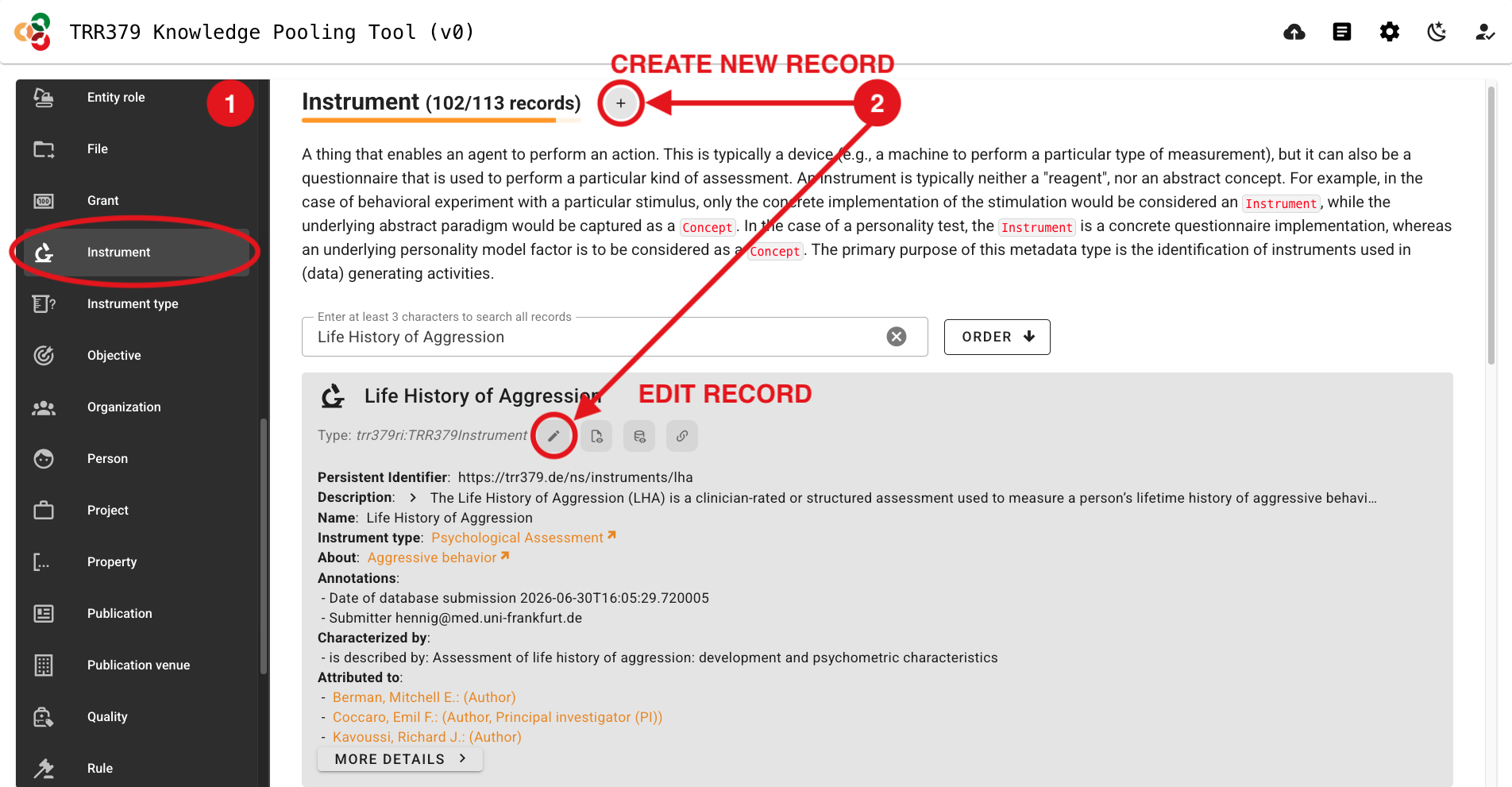
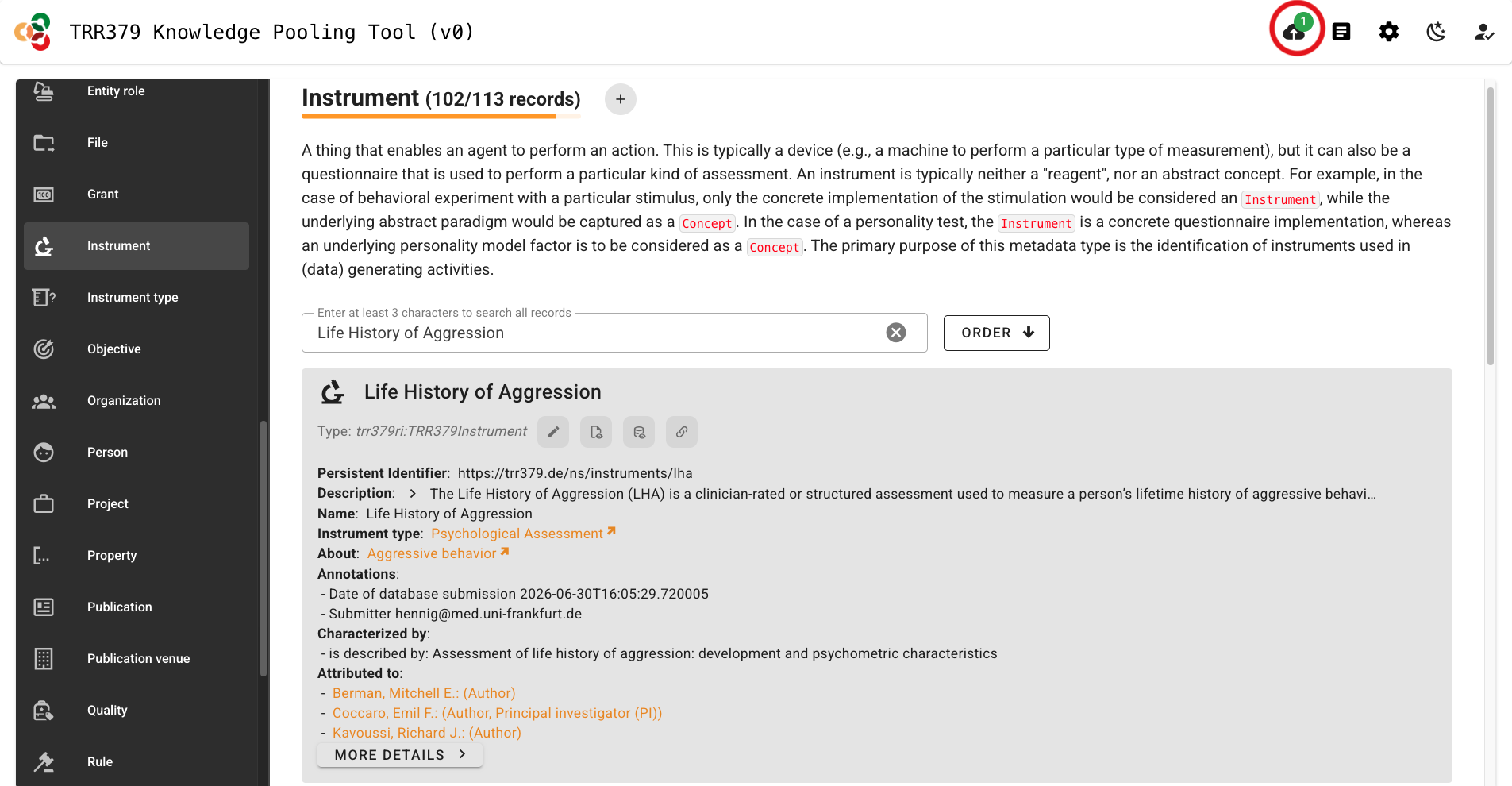
- Click the “Edit PID manually” button (pencil icon to the right of “Persistent identifier”) and edit the random identifer according to the following naming convention:
Click the “Persistent identifer” pencil icon again to lock the PID editor.
Important information about PIDs
PIDs should be human-readable and should be sufficient for a knowledgeable human to understand what content is likely contained in that record.
These PIDs will end up as column header values in pertinent data tables.
The prefix, trr379: expands to https://trr379.de/ns/, and can be left out in any TRR379 internal usage.
Within the scope of a data table, the instrument identifier can be further shorted by stripping trr379:instruments/, leaving, for example, lha-trr379-q01-item1 as an item identifier (e.g., as a column header value).
- Within the “Name” box, enter a human-readable name for the content in your Instrument record. As is relevant, this might take the format: <original_instrument_name>, <subscale_name> (<trr379_variant>), or for a specific questionnaire item it would simply be the text for that question.
- Add whatever metadata you have available (see also Relationships and Additional metadata).
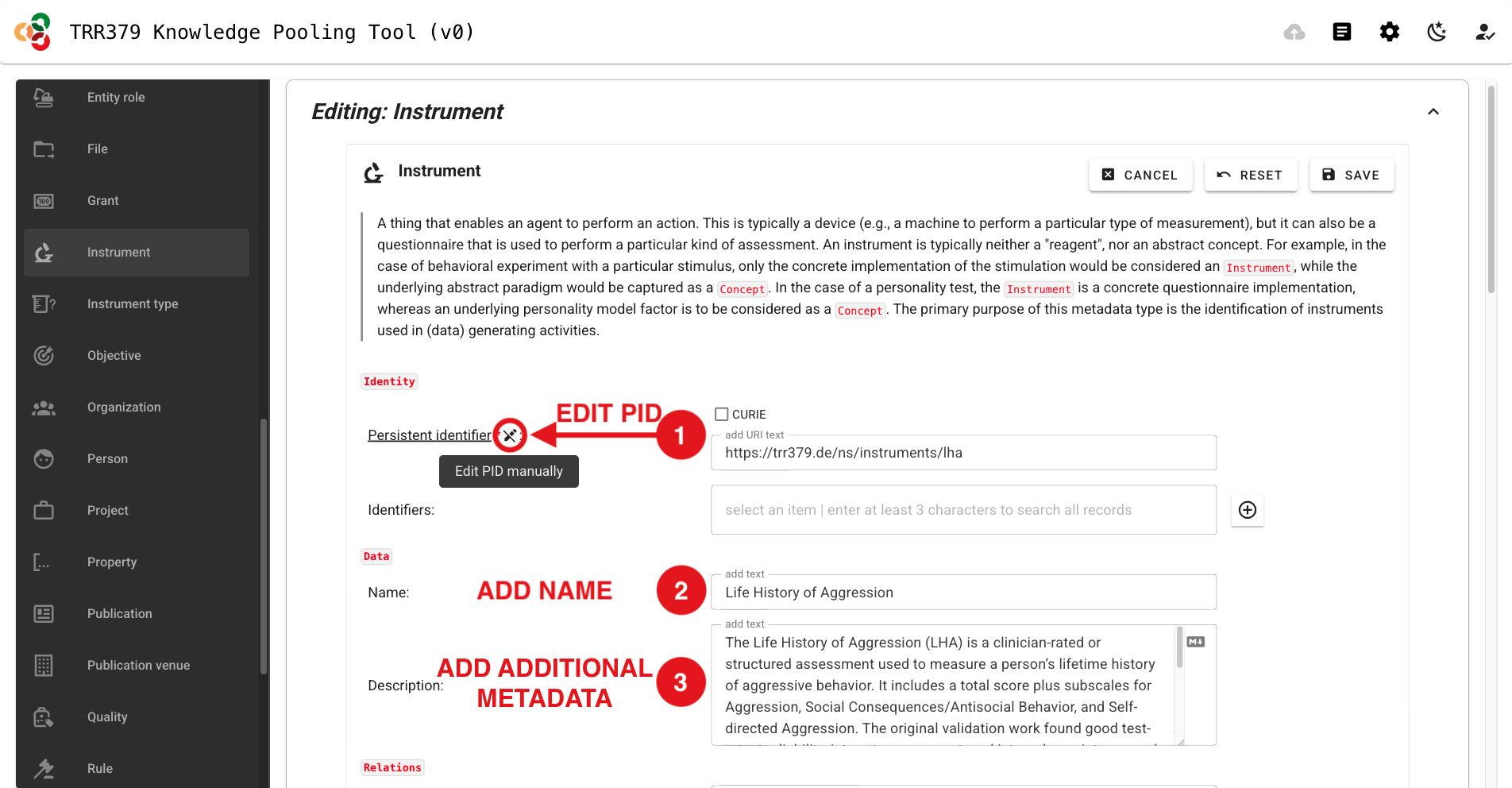
- Once all relevant information has been entered, click “SAVE” in the top-right corner to save the Instrument record.
- Click the “Submit” button (cloud icon, top-right), which should show a green notification dot to indicate changes are ready to be submitted.
Important note about saving versus submitting
The pool has two separate actions: saving and submitting. Saving stores your work in the browser only! It does not submit the record to the server for use by the consortium workflows. To submit, click the Submit button (cloud icon, top-right corner) when there is a green notification dot indicating records are ready for submission. Do not close your browser tab before submitting, or your data will be lost.
- The interface will list all records you are about to submit. You should see your Instrument record here.
- Click “Submit”. A confirmation message will appear when submission is successful. If an error occurs, note the message and retry. If it persists, you may wish to review common error messages or reach out for help via the resources in the Support page.
Tip
At a minimum:
- Use a meaningful, human-readable PID.
- Give the record a meaningful name.
- Save and submit the record.
Everything after that is a (welcomed) bonus.
Document a questionnaire
Questionnaires can be represented at several levels.
Original questionnaire
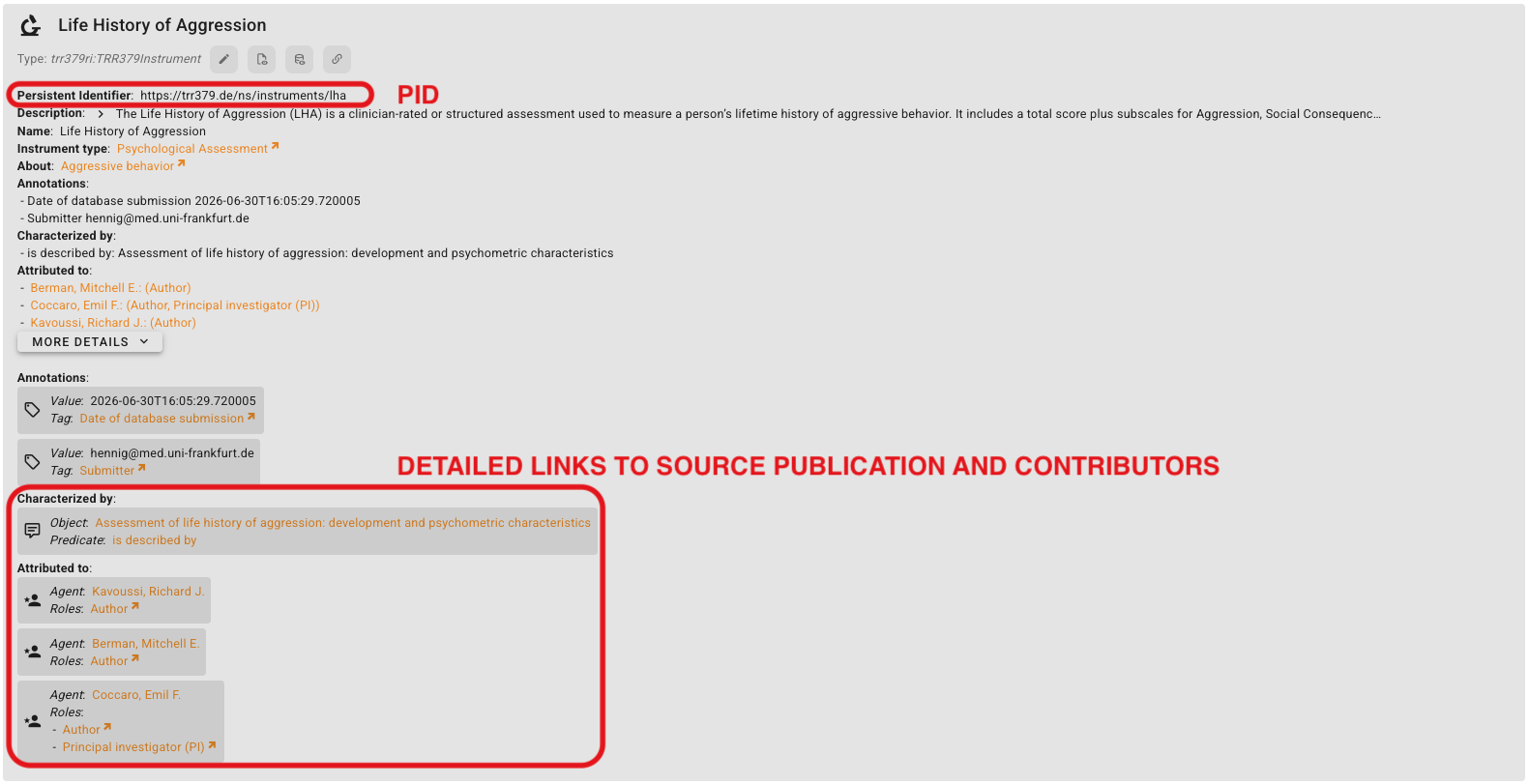
If the original instrument/questionnaire is known, create a record for it, give it a PID in the format, trr379:instruments/<original_instrument> (e.g., trr379:instruments/lha) and, where possible, link it to its source publication or other canonical documentation.
TRR379 questionnaire variant
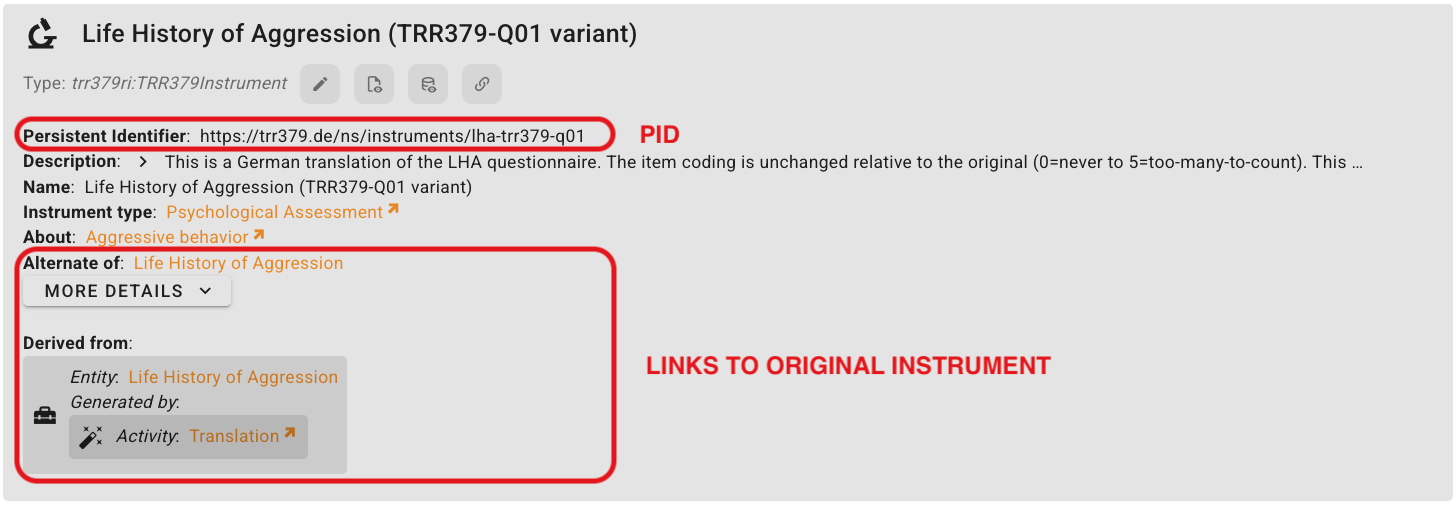
TRR379-specific versions take on the PID format, trr379:instruments/<original_instrument>-<trr379_variant_and_version> (e.g., trr379:instruments/lha-trr379-q01).
This is where you should document meaninful differences from the original questionnaire, including:
- translation
- modified wording
- different item selection
- coding differences
- particular TRR379 projects using the variant
Questionnaire items
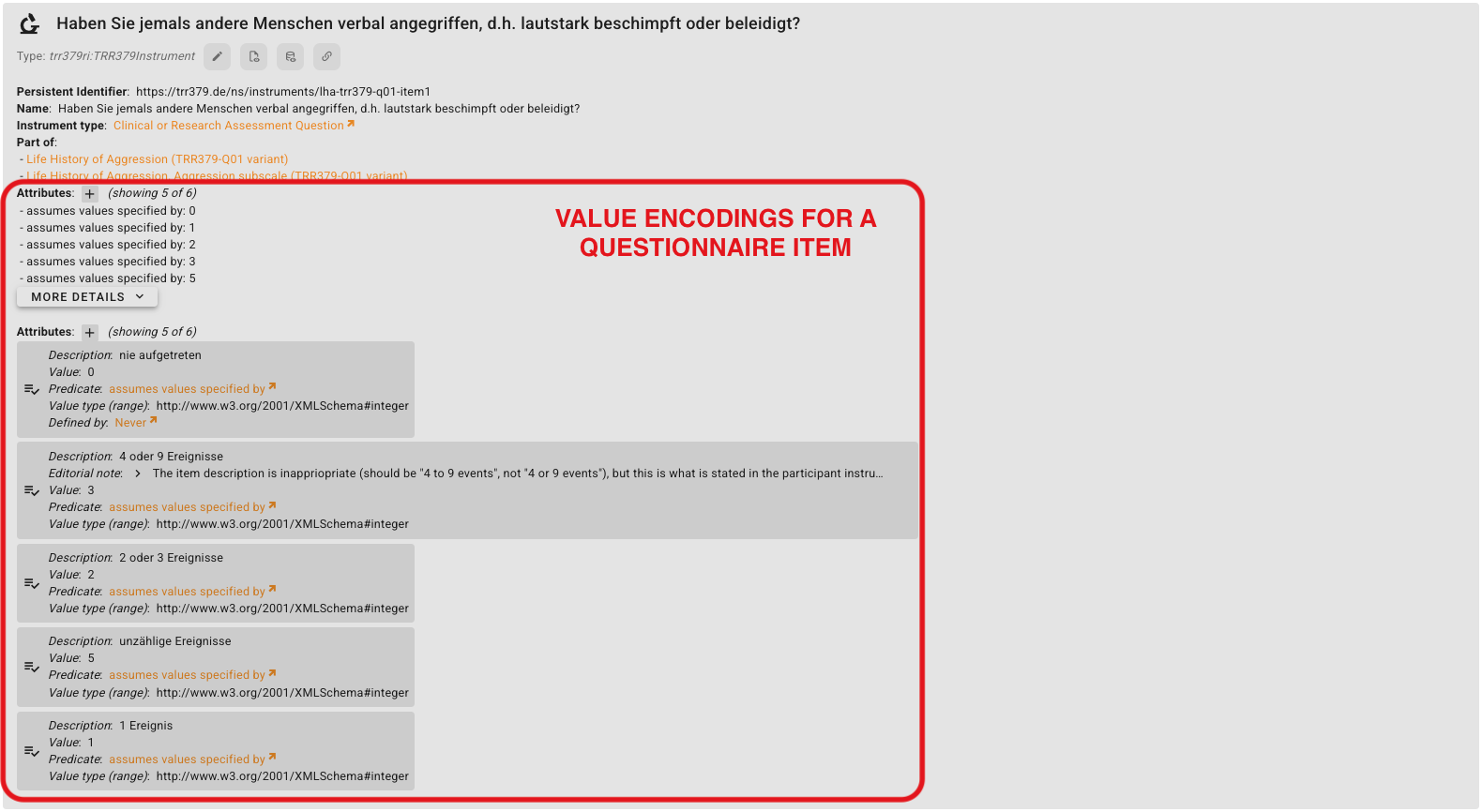
If the individual questionnaire subscales and/or items (i.e., questions) are known, create a separate Instrument record for each item. For LHA, for example:
Item-level identifiers allow sites to refer to the same questionnaire items consistently when preparing standardized datasets.
For each item, be sure to include:
- Name: the actual question/item text
part of: the questionnaire/variant it belongs to

When available, this also where value encodings for answer options may be recorded.
Relationships
Relationships are useful when you know how the record relates to another instrument or questionnaire.
| Relationship | Use when… | Example |
|---|---|---|
part of | An item/subscale belongs to a questionnaire | There are 11 individual items that are part of the LHA |
alternate of | Two records represent alternative versions of the same instrument | A TRR379 variant may be an alternate of the original instrument |
derived from | A version was created from an earlier/original instrument | A TRR379 questionanire might be derived from the original instrument through the “Activity”, “Translation” |
revision of | A new version revises an earlier version | A second version of a TRR379 questionnaire is a revision of the first version of that TRR379 questionnaire |
Additional metadata
For instruments to live up to their fullest metadata potential, proceed to add relevant information as you are able. For example:
Work with raw MRI data
Magnetic resonance imaging is an essential data acquisition method for TRR379. Four sites acquire such data. Each site has (different) established routines and conventions. This documentation collects resources and best practices that can be adopted by TRR379 members.
Subsections of Work with raw MRI data
BIDS conversion
Converting the heterogeneous, site-specific raw MRI data acquisitions into a standardized dataset is an essential precondition for the collaborative work in TRR379. It readies the data for processing with established pipelines, and applies a pseudonymization as a safeguard for responsible use of this personal data.
TRR379 uses the Brain Imaging Data Structure (BIDS) as the standard for its datasets.
Conversion to BIDS
The conversion of raw MRI data in DICOM format to a BIDS-compliant dataset is a largely automated process. The recommended software to be used for conversion is heudiconv. Heudiconv uses dcm2niix as the actual DICOM→NIfTI converter. Heudiconv tutorials further illustrate how the software works.
Heudiconv performs the task of mapping DICOM series to BIDS entities (ie. determining BIDS-compliant file names). A key heudiconv concept is a heuristic: a Python program (function) which receives the DICOM series properties and matches them with a file naming pattern. A heuristic typically relies on DICOM series naming (set at the scanner console), but it can also use other properties such as number of images or acquisition parameters.
Heudiconv workflows have been implemented at each MRI acquisition site, and reuse shared components.
Shared Resources
- q02/heudiconv-container is a DataLad dataset providing a heudiconv container.
- q02/rdmtools contains Python scripts which further automate BIDS conversion, pushing created datasets to dedicated locations, and other data curation tasks.
- q01/phantom-mri-dicoms is a superdataset grouping phantom MRI scans from all sites, used to develop and test the conversion workflow; it also contains the reference TRR379 heudiconv heuristic.
Important
Each site maintains its own copy of the heuristic (as part of the site-specific DICOM superdataset) to account for site-specific differences.
Details
Modular datasets
A DataLad dataset containing a BIDS dataset will typically have these subdatasets. Subdatasets help in recording provenance while enabling different access scopes for different components:
code/heudiconv: heudiconv container (q02/heudiconv-container)code/rdmtools: optional, shared scripts for data curation tasks (q02/rdmtools)sourcedata/dicoms: a site-specific DICOM dataset, itself containing one subdataset per session.heudiconv: heudiconv cache / intermediate outputs are stored in a separate dataset to avoid including DICOM information in the BIDS dataset
Submit Annual DFG Survey
The 2025 survey is closed
Access the survey app to participate.
Need help?
I am having issues with the survey form.
If there are issues with the form, they can be submitted on the TRR379 collaboration hub at https://hub.trr379.de/q02/dfg-cp-survey-ui/issues (requires an account), or emailed to trr379@lists.fz-juelich.de.
I need a personalized access token.
As a member of the TRR379, you should receive an individual access token via email. If you have not received one, please email Michael Hanke with a request.
Background
The Deutsche Forschungsgemeinschaft (DFG, German Research Foundation) gathers information from its funded projects on an annual basis. Some information is collected from all members of a coordinated programme, such as a collaborative research centre (CRC).
The data are used to produce statistical reports and provide answers to statistical queries. In addition, the data serve as the basis for statistical evaluations, which the DFG uses to comply with its reporting obligations to financial backers, the federal government and the state governments.
For more information, please refer to the information on data protection in relation to DFG research funding (see point 10 under Research Funding question IV), which can be accessed at https://www.dfg.de/privacy_policy.
TRR379 approach
The TRR379 collects the DFG survey data using the same infrastructure that is employed for research metadata collection and management, rather than the PDF-form based approach suggested by the DFG.
This offers the following advantages:
- members only have to enter their details in the first survey, and can efficiently resubmit updated records in subsequent years
- members can consent to having a subset of their information be used to create and update a profile page on their person on the TRR379 website with no additional effort
- members can consent to having basic information (e.g., name, ORCID) on them be made available in other TRR379 services, for example for reporting publications, or data annotation, to avoid repeated, manual information entry
Collected information is submitted to a TRR379-dedicated virtual server hosted at Forschunsgzentrum Jülich (operated by the Q02 project via an encrypted connection. Individual person records are only accessible via a personalized link with an individual access token. Members receive this access information via email.
This service is opt-in. Members who do not wish to have their data submitted and kept in the described way can follow the standard DFG-procedure and send the PDF-form available at https://www.dfg.de/resource/blob/203580/questionnaire-sfb-grk-fip-2025-en.pdf to the TRR379 management team.
Submit data
The electronic survey form is provided at https://dfg-cp-survey.trr379.de
Members receive a personalized access link via email. Only with this link is it possible to see one’s personal record and to submit information.
Tip
It is highly recommended to use this webform with a desktop browser; the form offers rich contextual information that is hard to access on mobile devices.
Create or edit a record
If no record on a person already exists, a new record must be created.
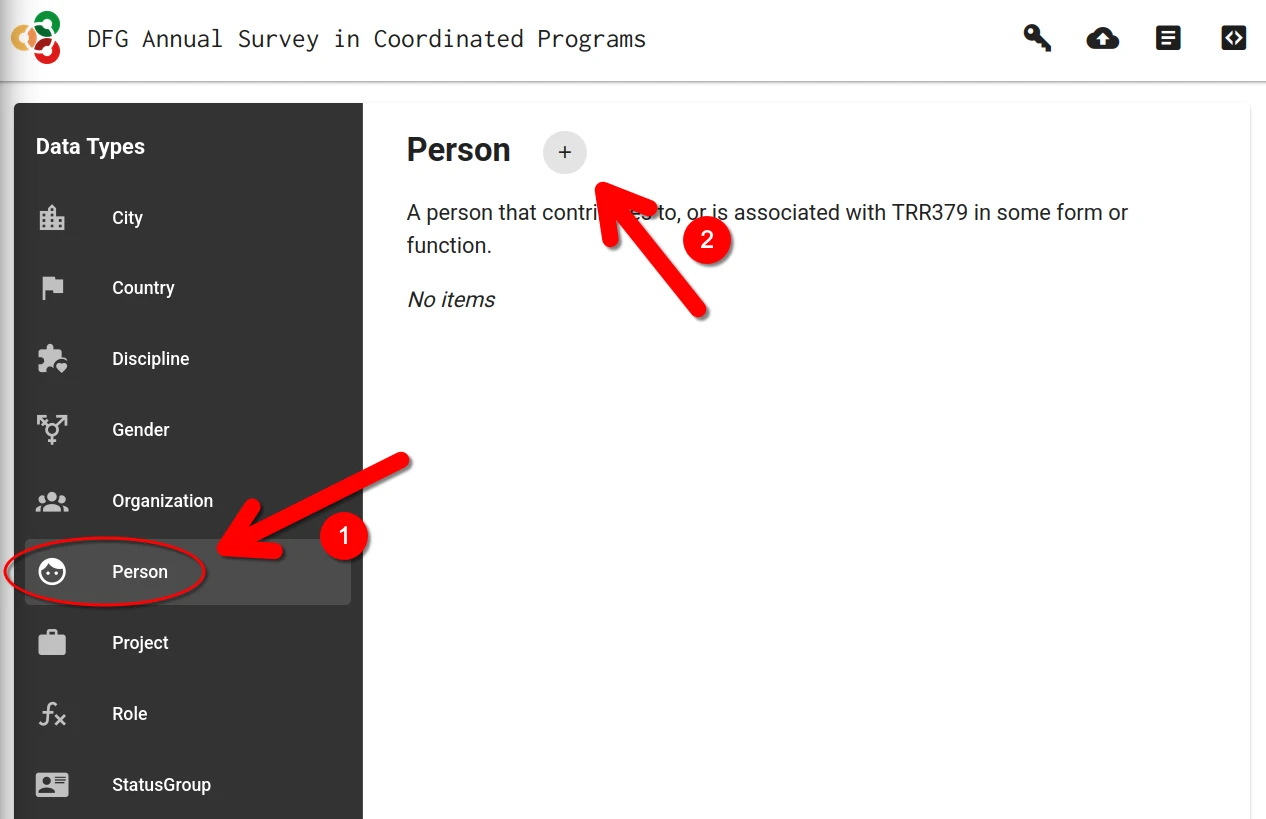
This is done by clicking on the + button in the “Person” category.
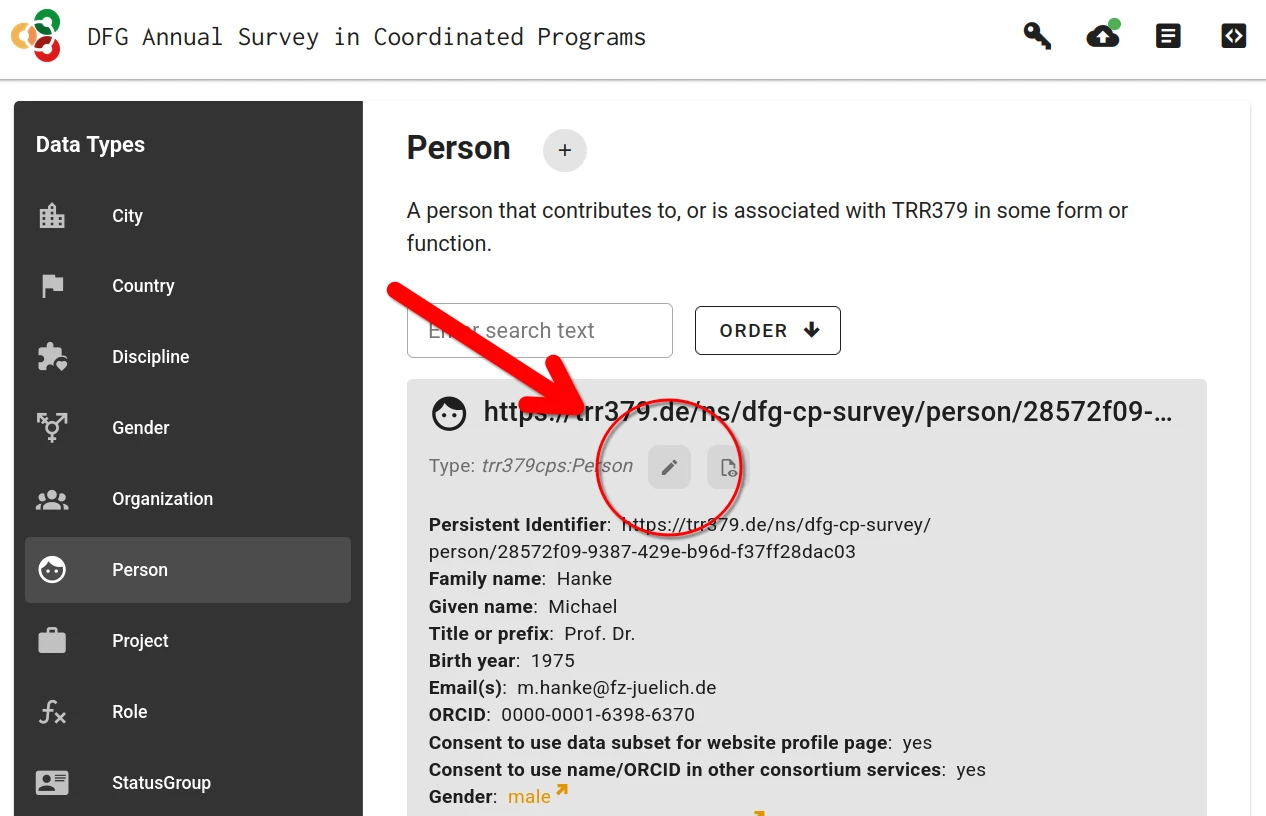
Alternatively, if a previous record already exist, it can be loaded by clicking on the “Edit” button (pencil icon).
Fill the form
Context help is provided for every form filed. This information is accessible by hovering the mouse pointer over the field title.

For some fields (e.g., prior workplace, area of study) one or more choices have to be selected. The selector offers type-ahead search of choices. The selection is constrained to choices matching the entered text in their label.
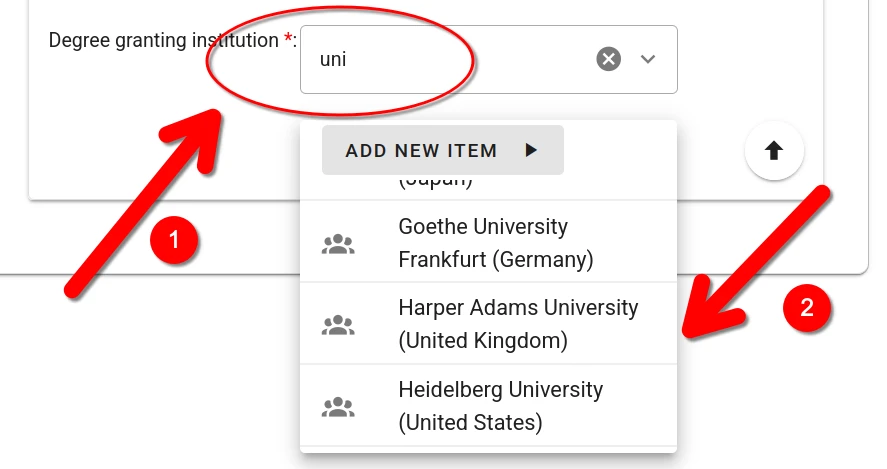
When no adequate choice exists, a new item can be created by clicking the “Add New Item” button.
Save and submit the form
There are two different save actions: local saves and submitting to the server.
Save form sections (local save)
Whenever a form (or sub-form) is completed, it must be saved by clicking the “Save” button. You must do this for each section you complete.
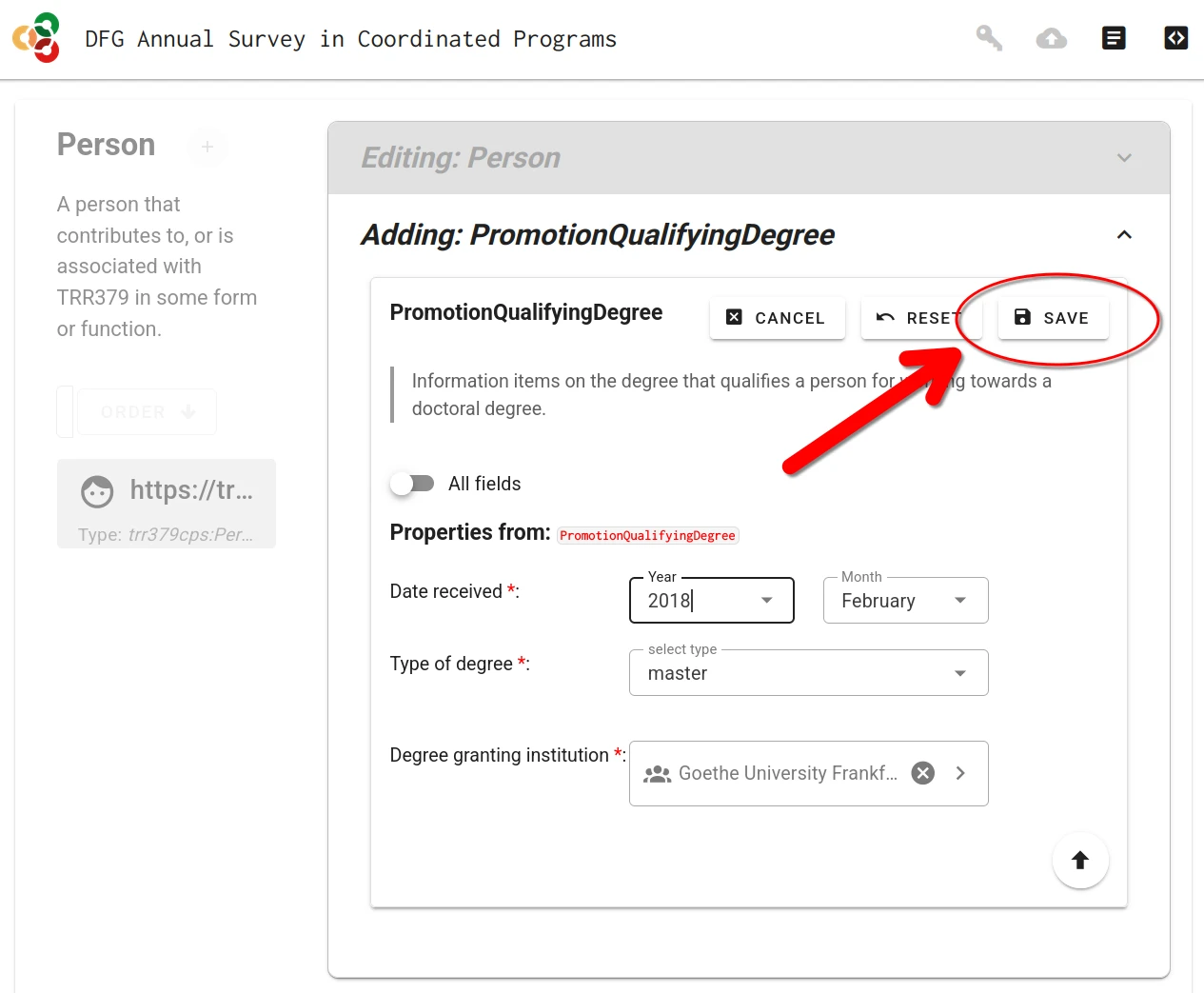
Important
Saving only stores the information in the local browser session! It does not submit the form to the server.
Final submission to server
When the person record is complete and is saved, the record can be submitted to the server by clicking the “Submit” button (cloud icon with up arrow).
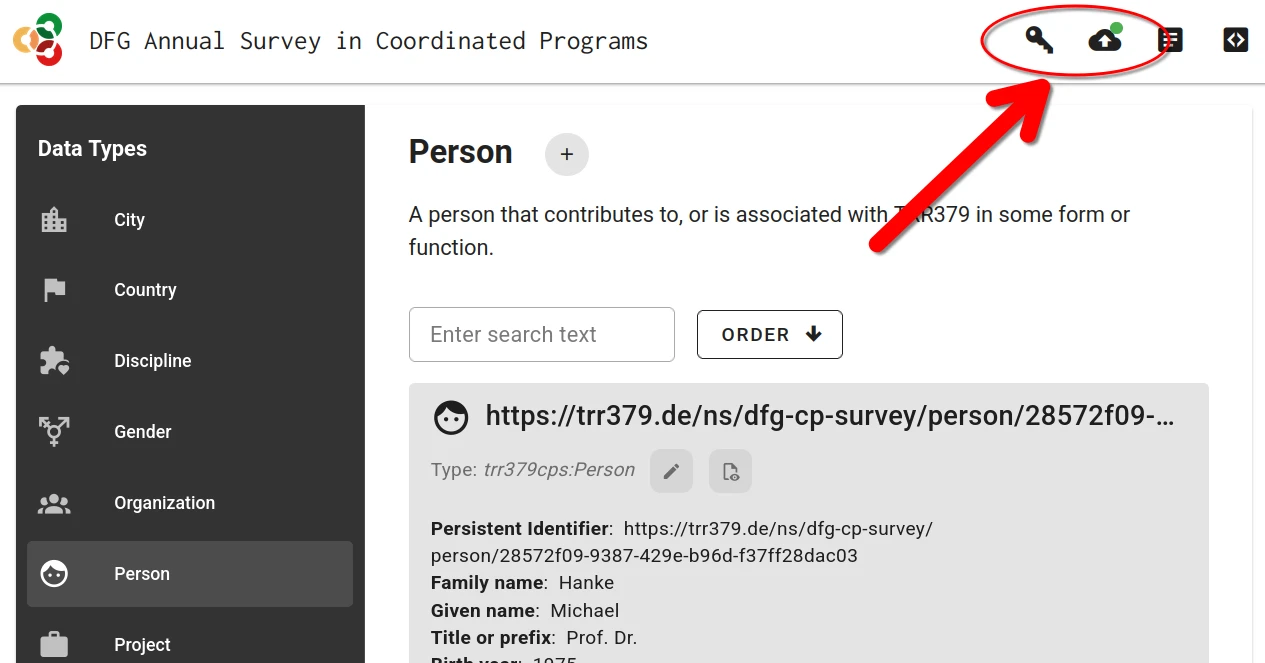
Submission is only possible with a valid access token. If the form was accessed via the personalized link, this token is already in place. If the form was accessed by other means, the token can be entered via the “Key” button. The token is embedded in the access link received via email.