The TRR379 collaboration platform (or “Hub” for short) is the platform for code and large dataset collaboration, and where access tokens for the knowledge pooling tool are generated.
The Hub runs an enhanced version of the Forgejo software.
Access to the knowledge pooling tool is managed using OAuth 2.0 (and/or tokens) and Forgejo teams.
Forgejo-based authentication ensures that permissions are linked to existing institutional or project accounts, and allows for identification of users interacting with the API or web UI.
Only users logged in using an associated Hub account or using a valid access token can add or edit records.
Follow the guides below to create and configure your Hub account with appropriate permissions.
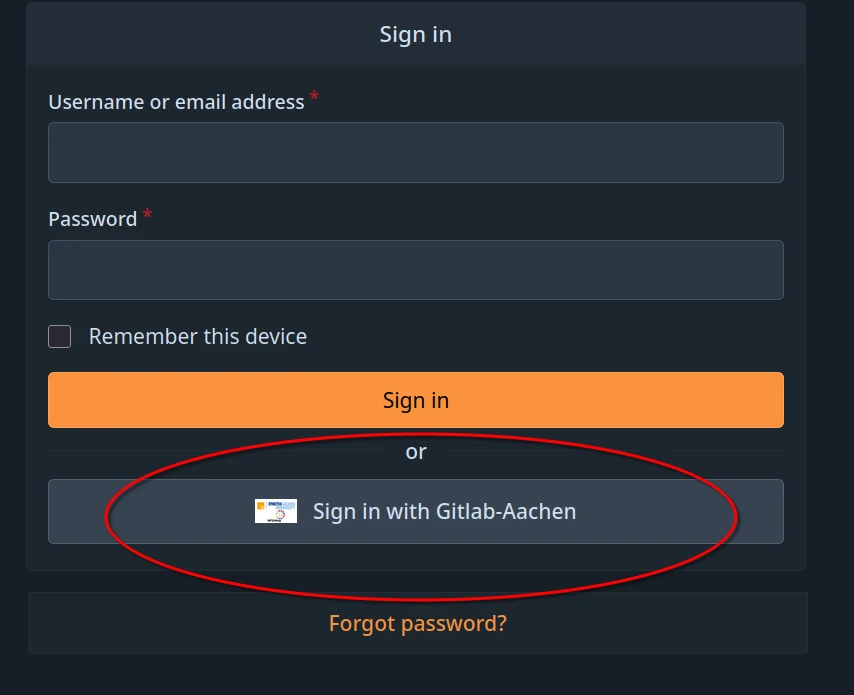
Log in using your preferred identity provider (i.e., GitHub or your affiliated organization via DFN-AAI SSO) and follow the on-screen instructions to activate your account.
Visit the confirmation link that will be sent to the email address associated with the account.
Important
If you are using a private account to register (e.g., GitHub, Google, etc.), please email trr379@lists.fz-juelich.de after you registered, explaining your institutional affiliation and relationship with TRR379.
If anyhow possible, institutional emails/accounts should be used.
Manual request
In order to obtain an account manually, email trr379@lists.fz-juelich.de. Please email from an institutional email, and CC the respective TRR379 project lead. In the email, mention any projects and/or organizations you require read or write access to.
Note
A manual request will not allow for using your institutional Single Sign-On (SSO).
This page provides an overview of how you can engage with the TRR379 community.
Follow the links below for details on each platform and how you can get set up.
Stay updated
The main website is the public face of the consortium and its canonical reference system. It is updated on a regular basis, and you should check it frequently for news, announcements, current project and contributor listings, and up-to-date publication overviews.
Calendars (internal and public) are hosted on a dedicated CalDAV server.
The @angry.brains Instagram account introduces the TRR379’s research topics and creates an opportunity to engage with a broad audience.
Exchange information and get feedback
The TRR379 space on Matrix is an informal place to connect with other members, exchange information, and get faster feedback.
The all/status repository on the Hub is a place to collect all issues related to TRR379 data integration.
There is a bi-weekly office hours for TRR379 members to connect synchronously. For more information on timing and how to join, see the Office Hours section on the Support page.
Report research activity
The knowledge pooling tool is the central collection point for research activity across all TRR379 partner sites and projects. When you submit something here, it automatically flows into the consortium website, progress reports, and other outputs.
The knowledge pooling tool is a platform for collecting, curating, and sharing structured information about research activities, outputs, and contributors across TRR379 projects and institutions.
The following workflows provide step-by-step guidance for submitting specific record types to the pool, but note that many of the steps are transferable to other record types:
Read the disclaimer, and if you agree, select “Authorize Application”.
A checkmark will appear on to the “Login” (human silhouette) button if you were successfully logged in.
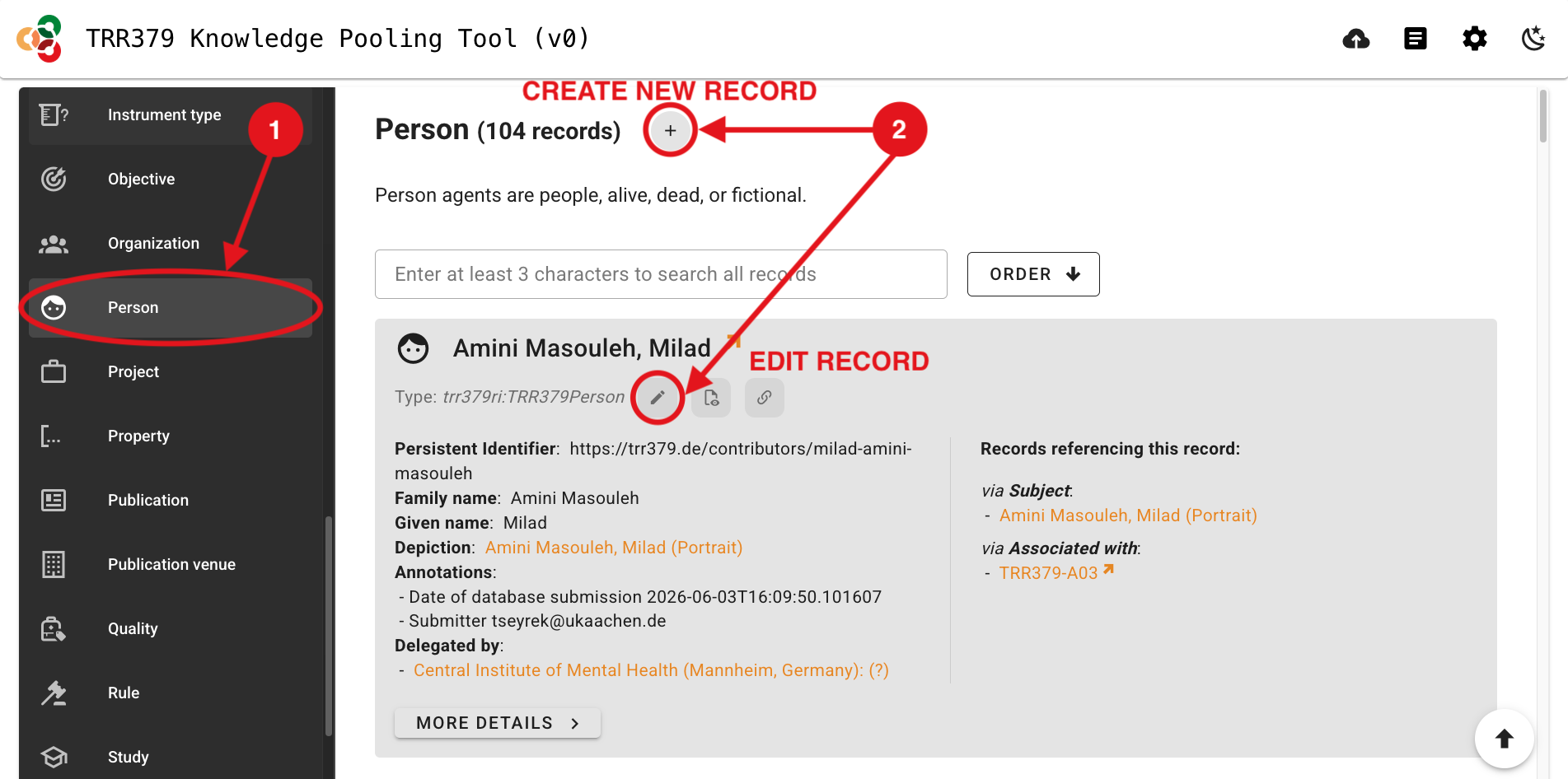
Select the “Person” Data Type on the left side of the page.
Create a new record by clicking the + (plus) button, or edit an existing record by clicking the pencil icon.
To add a portrait photo, click the “Upload a depiction” Wizard button (person silhouette icon). Click the file attachment button (paperclip icon), and select the portrait image with your file browser. Wait for the green checkmark confirmation of a successful upload, and then click “SAVE”.
Important
Image requirements:
Contributor portraits: maximum 400 pixels wide
Page thumbnails: minimum 320 by 240 pixels, aspect ratio 4:3
A single image can serve as both portrait and thumbnail if the face is centered
Proceed to add relevant information to complete your contributor profile as follows:
ORCID identifier
Within the “Identifiers” box, select “ADD NEW ITEM” and then “ORCID” from the dropdown menu.
Under “Notation”, enter your ORCID in the format “XXXX-XXXX-XXXX-XXXX”.
Under “Creator”, start typing “ORCID” and select the “ORCID” organization when it appears in the dropdown menu.
Click “SAVE” in the top-right corner to save the ORCID record.
Description
Within the “Description” box, type a short biography, which can include (but is not limited to) information such as your affiliation(s), professional expertise/interests, and your role within TRR379.
The “Description” field supports Markdown formatting. To preview how your description will render, select the small Markdown logo (capital “M” with a downward-facing arrow) to enter the Markdown editor.
Name(s)
Enter the relevant family name(s), given name(s), honorifics, etc. in the respective text boxes.
Affiliation(s)
Within the “Delegated by” box, select “Organization” from the dropdown menu.
A new box will appear just below “Organization”. Search for your affiliated organization by starting to type its name, and select the appropriate organization when it appears in the dropdown menu.
TIP: Organizations might exist in the pool in a language different to what you are searching for, or might not be searchable based on their abbreviations. Try searching keywords in the organization name that do not translate in different languages before adding a new organization. For example, you may want to search “Jülich” instead of “Research Centre Jülich”, “Forschungszentrum Jülich”, or “FZJ”.
To add additional affiliations, select the + (plus) button to the right of the “Delegated by” boxes.
Once all relevant information has been entered, click “SAVE” in the top-right corner to save the Person record.
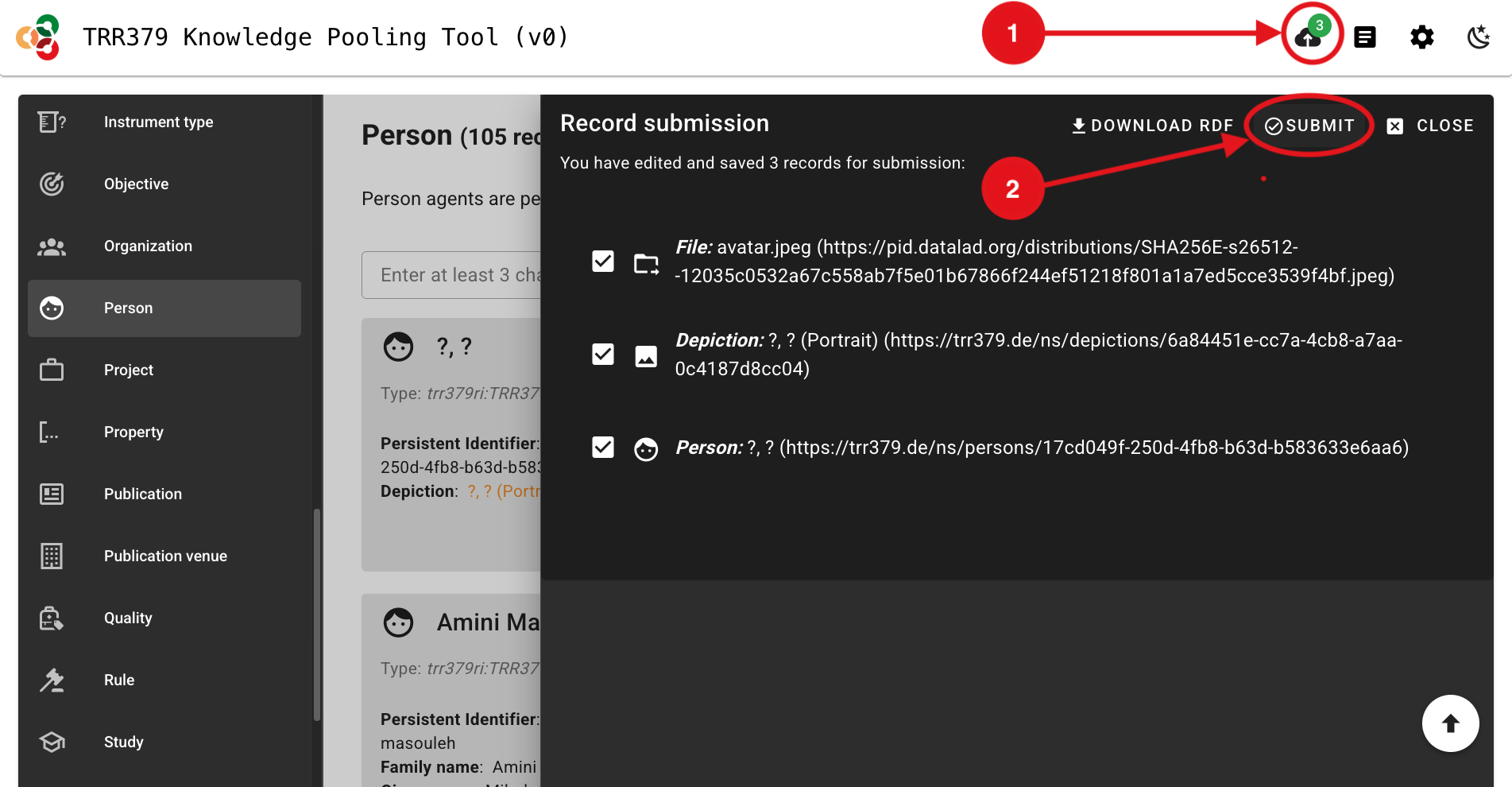
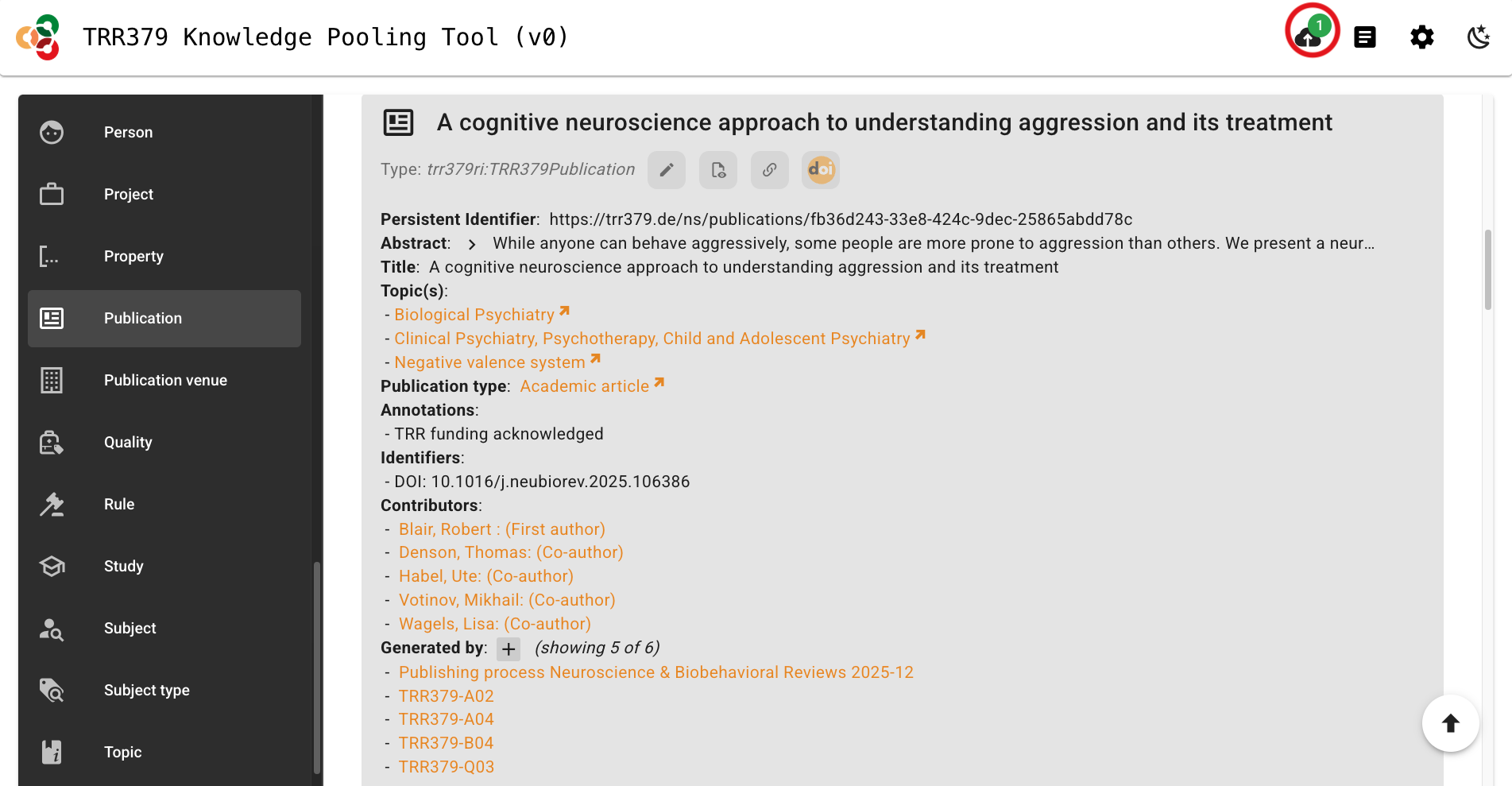
Click the “Submit” button (cloud icon, top-right), which should show a green notification dot to indicate changes are ready to be submitted.
Important note about saving versus submitting
The pool has two separate actions: saving and submitting.
Saving stores your work in the browser only!
It does notsubmit the record to the server for use by the consortium workflows.
To submit, click the Submit button (cloud icon, top-right corner) when there is a green notification dot indicating records are ready for submission.
Do not close your browser tab before submitting, or your data will be lost.
The interface will list all records you are about to submit. For a contributor profile with a profile photo, you should see three records: a File, a Depiction, and a Person.
Click “Submit”. A confirmation message will appear when submission is successful. If an error occurs, note the message and retry. If it persists, you may wish to review common error messages or reach out for help via the resources on the Support page.
Report publications
Note
Every member is responsible for submitting their own publications. Do not wait for someone else to add your work. If a publication is not in the pool, it will not appear in the consortium publication overview on the website.
Read the disclaimer, and if you agree, select “Authorize Application”.
A checkmark will appear on to the “Login” (human silhouette) button if you were successfully logged in.
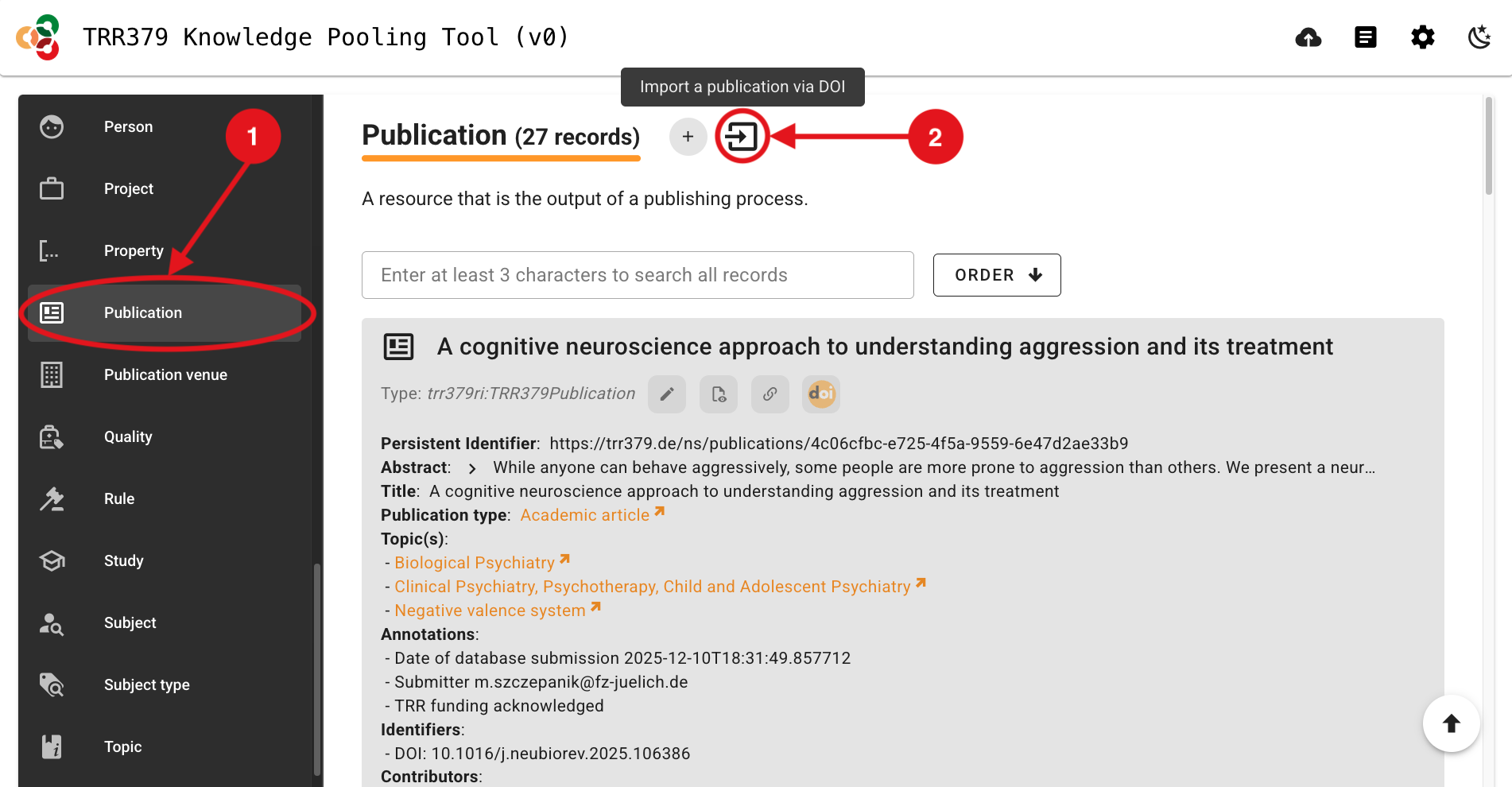
Select the “Publication” Data Type on the left side of the page.
Select the “Import a publication via DOI” button (square icon with right-facing arrow, just to the right of the + plus button).
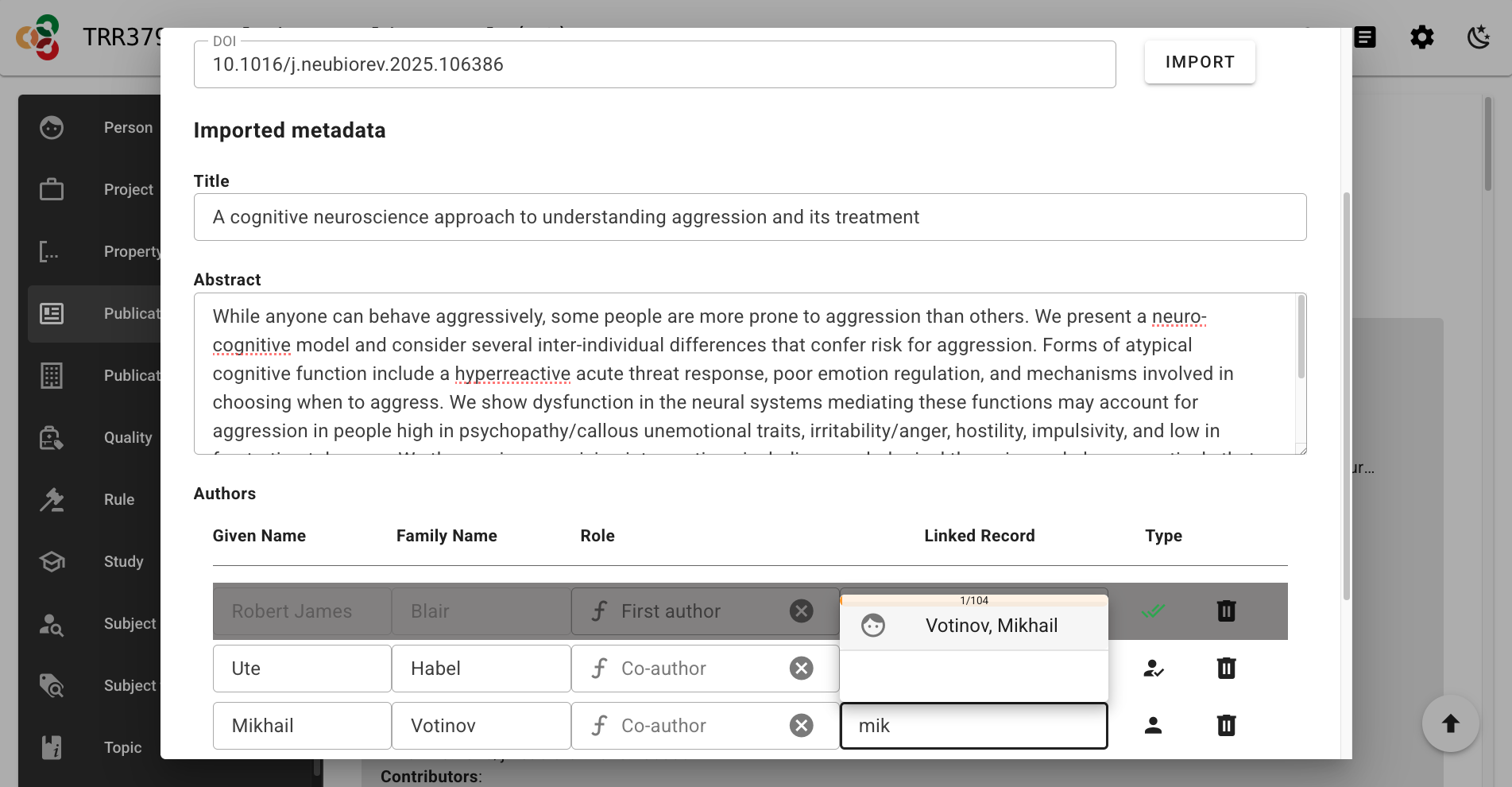
Enter the DOI, and select “IMPORT”. A new section should appear showing the imported metadata. If you receive an error message that the record already exists, follow the instructions to edit the existing record instead of importing a new one.
Note
Enter just the DOI without the URL part (i.e., 10.1016/j.neubiorev.2025.106386 and not https://doi.org/10.1016/j.neubiorev.2025.106386)
Confirm, add, or edit the Title, Abstract, and Authors as necessary. For authors that are not automatically linked upon import to Person records in the pool, you can click and search directly in the “Linked Record” column to find a corresponding Person record in the pool; if no linked record is selected, a new Person record will be created for that author. Click “SAVE” when everything looks correct.
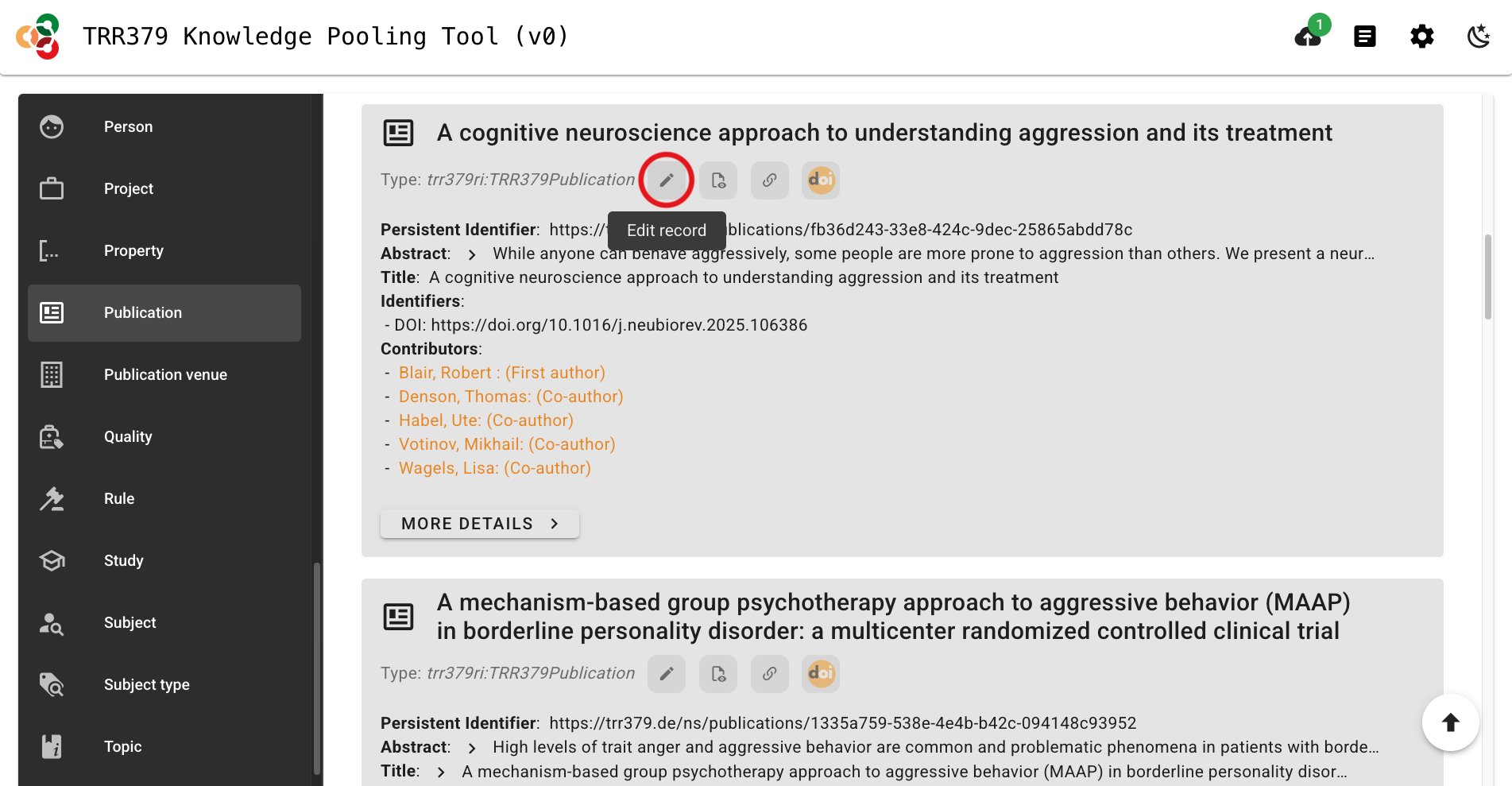
Navigate to your new Publication record in the pool’s Publication records list, and click the pencil icon to edit it.
For publications to make the best impressions and live up to their fullest metadata potential, proceed to add relevant information to complete the Publication record as follows:
Publication type
Within the “Publication type” box, select the appropriate type (e.g., “Academic article”) from the dropdown menu.
Topic(s)
Within the “Topic(s)” box, browse and select topics relevant to the publication from the dropdown menu.
To add additional topics, select the + (plus) button to the right of the “Topic(s)” box.
Publication journal and date
Within the “Generated by” box, select “Activity” from the dropdown menu.
A new box will appear just below “Activity”. Select “Publishing process” from the dropdown menu.
Click the pencil icon to add qualifying information (i.e., publication time and location).
Add the publication date to the “At time” box in the format, YYYY-MM-DD. Alternatively, you can click the calendar icon to select the date.
Add the publication venue/journal by searching its name within the “At location” box, and selecting the correct name when it appears in the dropdown menu. Alternatively, you can search the journal’s ISSN. Wait a few seconds for choices to populate before creating a new record; search results may take time to load.
Click “SAVE” in the top-right corner to save the publication journal and date information.
Associated project(s)
Within the “Generated by” box, select “Project” from the dropdown menu.
A new box will appear just below “Project”. Browse and select a TRR379 project associated with the publication from the dropdown menu.
To add additional projects, select the + (plus) button to the right of the “Generated by” box.
License
If the publication has a particular license (e.g., within the Creative Commons suite), select the appropriate license from the dropdown menu within the “Rules” box.
Funding acknowledgment
At the very bottom of your Publication record editing screen, toggle the “All fields” option to on (indicated in blue).
Within the “Annotations” box, search “TRR funding” and select whether TRR funding is or is NOT acknowledged in the publication.
Once all relevant information has been entered, click “SAVE” in the top-right corner to save the Publication record. After saving, a well-curated publication record links to its authors, topics, and projects.
Click the “Submit” button (cloud icon, top-right), which should show a green notification dot to indicate changes are ready to be submitted.
Important note about saving versus submitting
The pool has two separate actions: saving and submitting.
Saving stores your work in the browser only!
It does notsubmit the record to the server for use by the consortium workflows.
To submit, click the Submit button (cloud icon, top-right corner) when there is a green notification dot indicating records are ready for submission.
Do not close your browser tab before submitting, or your data will be lost.
The interface will list all records you are about to submit. You should see your Publication record here.
Click “Submit”. A confirmation message will appear when submission is successful. If an error occurs, note the message and retry. If it persists, you may wish to review common error messages or reach out for help via the resources on the Support page.
Document instruments and questionnaires
TRR379 uses the knowledge pool to document research instruments and questionnaires, and to provide standardized identifiers that can be used when harmonizing data across sites.
You can document an instrument at different levels.
In particular, questionnaires can be documented as:
the original instrument or questionnaire,
a TRR379-specific version or variant,
individual questionnaire items, and
where useful, site-specific versions of an instrument or item.
These records can be linked to one another to expose the relationships between the original instrument, TRR379 versions, and individual questionnaire items.
You do not need to complete every level or every metadata field at once.
Instrument documentation is an iterative process.
A basic record with a clear identifier and name is already useful and can be expanded later.
Document an instrument
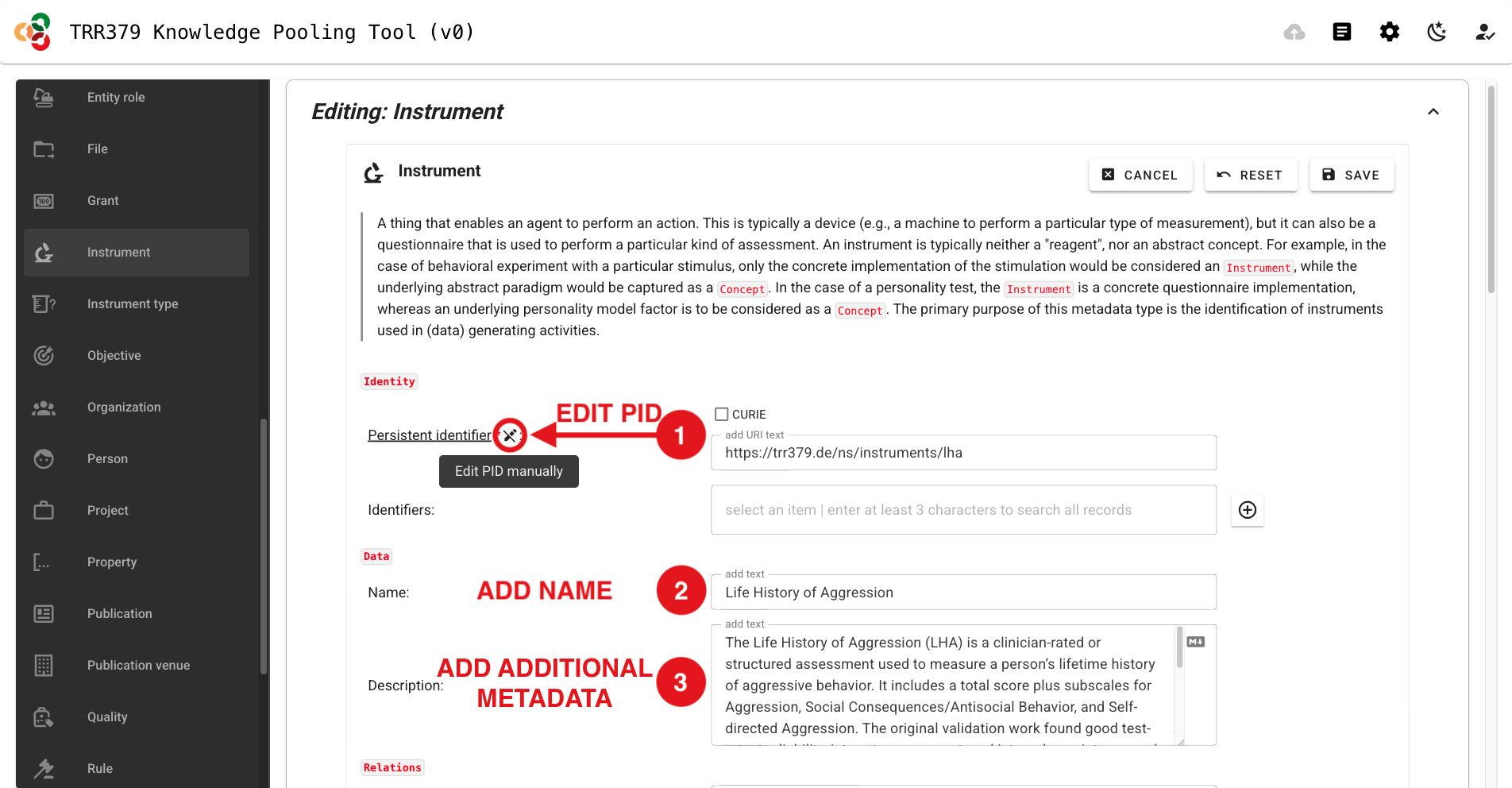
If you have an instrument that is used in TRR379, start by creating an Instrument record in the knowledge pool.
At a minimum, give the instrument a meaningful name and a persistent identifier.
If you know the description, instrument type, source publication, or relationships to other records, add those as well.
You can always add additional information later.
Read the disclaimer, and if you agree, select “Authorize Application”.
A checkmark will appear on to the “Login” (human silhouette) button if you were successfully logged in.
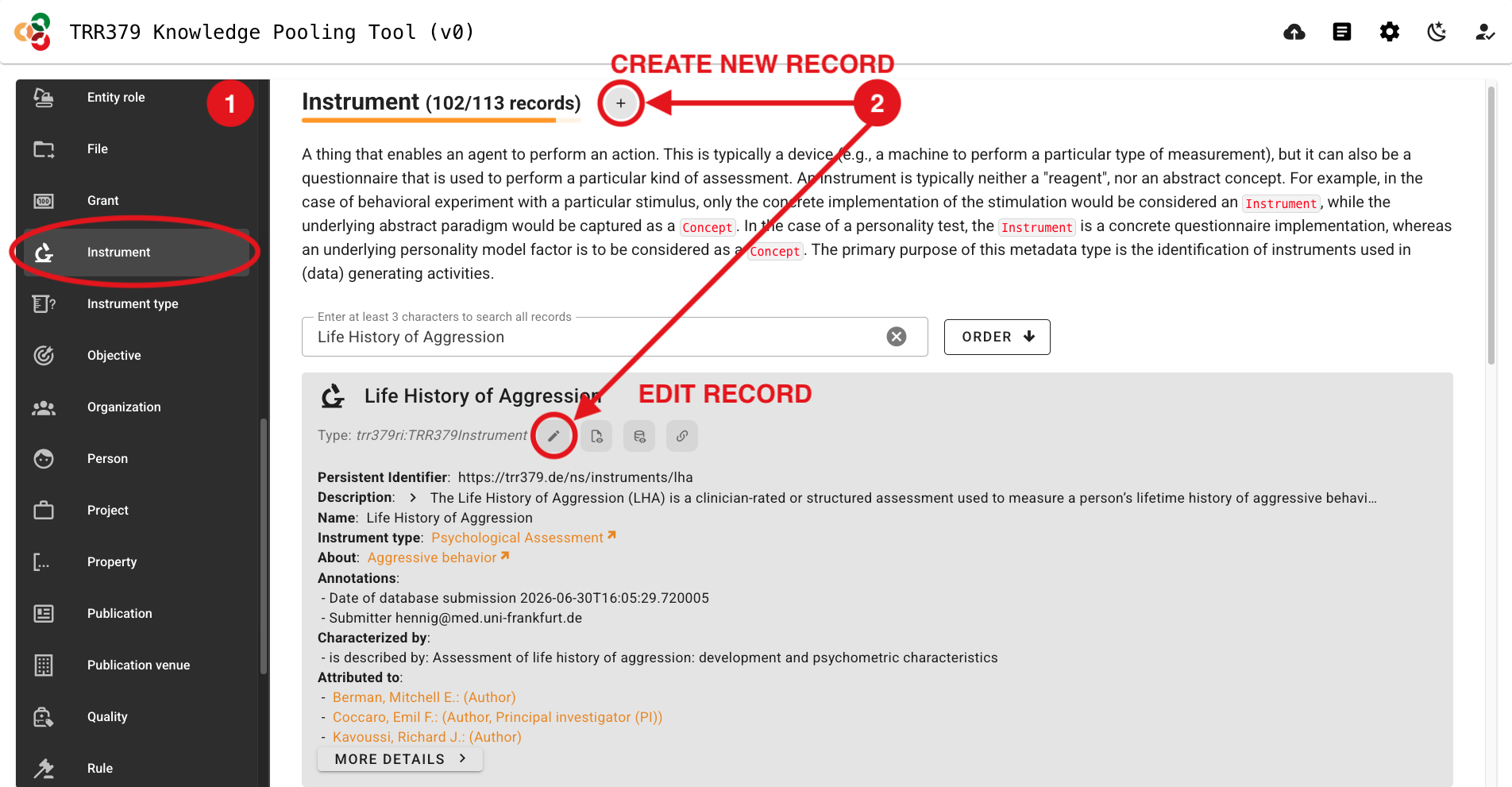
Select the “Instrument” Data Type on the left side of the page.
Create a new record by clicking the + (plus) button, or edit an existing record by clicking the pencil icon.
Click the “Edit PID manually” button (pencil icon to the right of “Persistent identifier”) and edit the random identifer according to the following naming convention:
Click the “Persistent identifer” pencil icon again to lock the PID editor.
Important information about PIDs
PIDs should be human-readable and should be sufficient for a knowledgeable human to understand what content is likely contained in that record.
These PIDs will end up as column header values in pertinent data tables.
The prefix, trr379: expands to https://trr379.de/ns/, and can be left out in any TRR379 internal usage.
Within the scope of a data table, the instrument identifier can be further shorted by stripping trr379:instruments/, leaving, for example, lha-trr379-q01-item1 as an item identifier (e.g., as a column header value).
Within the “Name” box, enter a human-readable name for the content in your Instrument record.
As is relevant, this might take the format: <original_instrument_name>, <subscale_name> (<trr379_variant>), or for a specific questionnaire item it would simply be the text for that question.
Once all relevant information has been entered, click “SAVE” in the top-right corner to save the Instrument record.
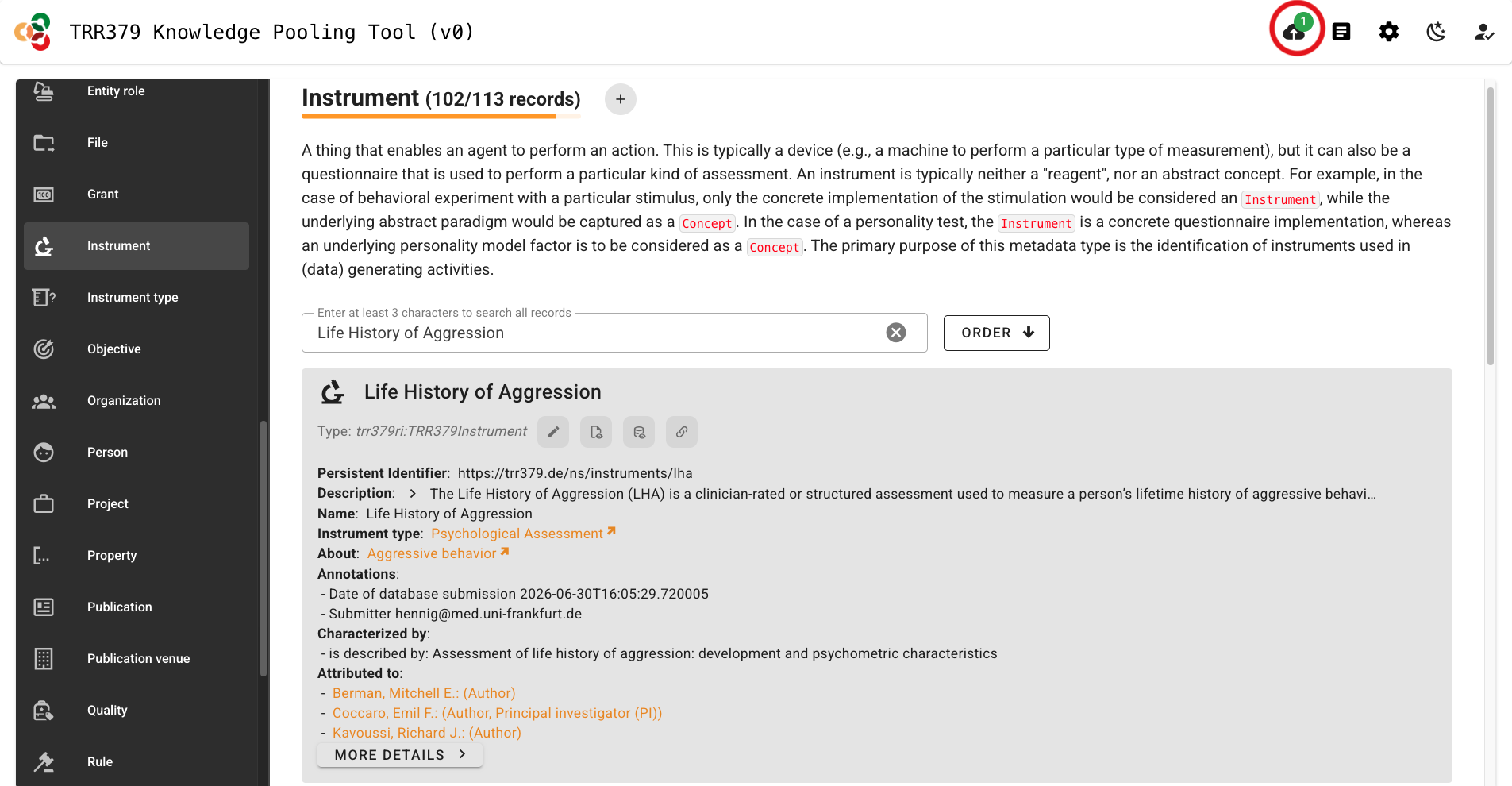
Click the “Submit” button (cloud icon, top-right), which should show a green notification dot to indicate changes are ready to be submitted.
Important note about saving versus submitting
The pool has two separate actions: saving and submitting.
Saving stores your work in the browser only!
It does notsubmit the record to the server for use by the consortium workflows.
To submit, click the Submit button (cloud icon, top-right corner) when there is a green notification dot indicating records are ready for submission.
Do not close your browser tab before submitting, or your data will be lost.
The interface will list all records you are about to submit. You should see your Instrument record here.
Click “Submit”. A confirmation message will appear when submission is successful. If an error occurs, note the message and retry. If it persists, you may wish to review common error messages or reach out for help via the resources in the Support page.
Tip
At a minimum:
Use a meaningful, human-readable PID.
Give the record a meaningful name.
Save and submit the record.
Everything after that is a (welcomed) bonus.
Document a questionnaire
Questionnaires can be represented at several levels.
If the original instrument/questionnaire is known, create a record for it, give it a PID in the format, trr379:instruments/<original_instrument> (e.g., trr379:instruments/lha) and, where possible, link it to its source publication or other canonical documentation.
TRR379 questionnaire variant
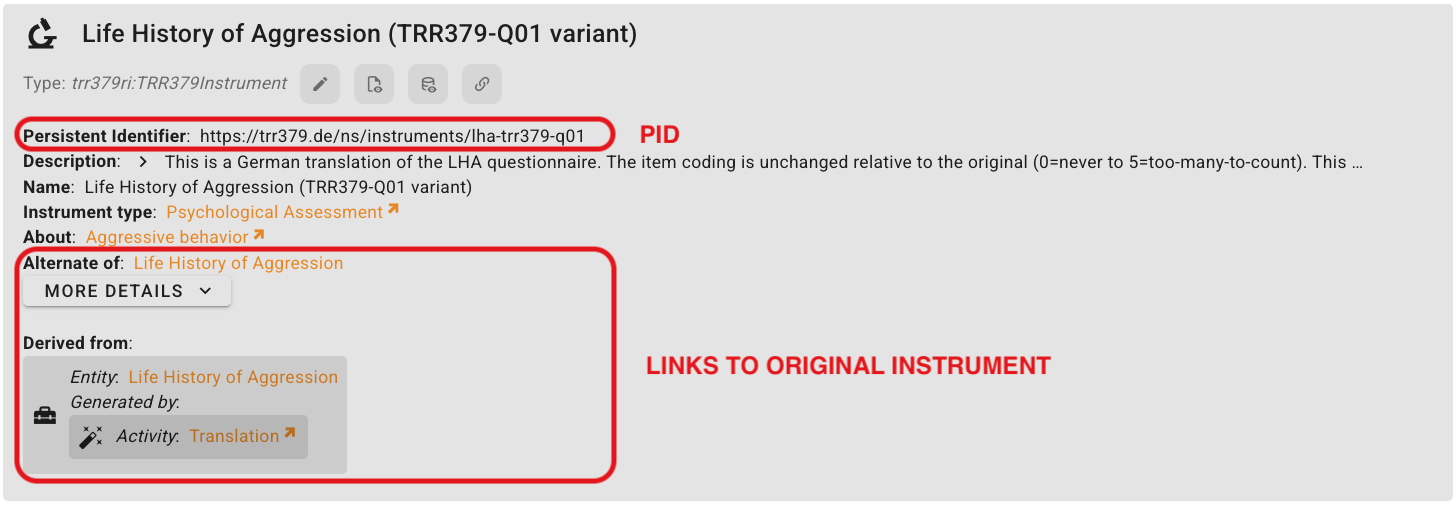
TRR379-specific versions take on the PID format, trr379:instruments/<original_instrument>-<trr379_variant_and_version> (e.g., trr379:instruments/lha-trr379-q01).
This is where you should document meaninful differences from the original questionnaire, including:
translation
modified wording
different item selection
coding differences
particular TRR379 projects using the variant
Questionnaire items
If the individual questionnaire subscales and/or items (i.e., questions) are known, create a separate Instrument record for each item.
For LHA, for example:
Item-level identifiers allow sites to refer to the same questionnaire items consistently when preparing standardized datasets.
For each item, be sure to include:
Name: the actual question/item text
part of: the questionnaire/variant it belongs to
When available, this also where value encodings for answer options may be recorded.
Relationships
Relationships are useful when you know how the record relates to another instrument or questionnaire.
Relationship
Use when…
Example
part of
An item/subscale belongs to a questionnaire
There are 11 individual items that are part of the LHA
alternate of
Two records represent alternative versions of the same instrument
A TRR379 variant may be an alternate of the original instrument
derived from
A version was created from an earlier/original instrument
A TRR379 questionanire might be derived from the original instrument through the “Activity”, “Translation”
revision of
A new version revises an earlier version
A second version of a TRR379 questionnaire is a revision of the first version of that TRR379 questionnaire
Additional metadata
For instruments to live up to their fullest metadata potential, proceed to add relevant information as you are able.
For example:
Description
Within the “Description” box, enter any information that is pertinant to understand what content is contained in your Instrument record.
For example, this may be a description/abstract taken directly from an original instrument’s documentation or related publication, or this could include details on how a TRR379 variant was changed (or not) from the original form (e.g., translations, item coding, which TRR379 projects use the variant, etc.)
Instrument type
Within the “Instrument type” box, select the appropriate type from the dropdown menu.
For questionnaires and their items, relevant types might include (but are not limited to): Psychological Assessment, Clinical or Research Assessment Subscale, Clinical or Research Assessment Question
Topic(s)
Within the “About” box, select the “FILTER DATA” button and make sure only “Topic” is checked to browse and select from the dropdown menu topics relevant to your Instrument record.
To add additional topics, select the + (plus) button to the right of the “About” box.
Relationship(s)
Within the relevant “Part of”, “Alternate of”, and/or “Specialization of” boxes, select the linked Instrument record from the dropdown menu. For example, a TRR379 questionnaire variant may be an alternate of the original instrument, a subscale may be part of a TRR379 variant, and a questionnaire item may be part of a TRR379 variant, as well as a subscale.
To add additional links, select the + (plus) button to the right of the “Part of”, “Alternate of”, and/or “Specialization of” boxes.
Provenance
Where known, record where an instrument or questionnaire variant came from, and how it relates to previous versions.
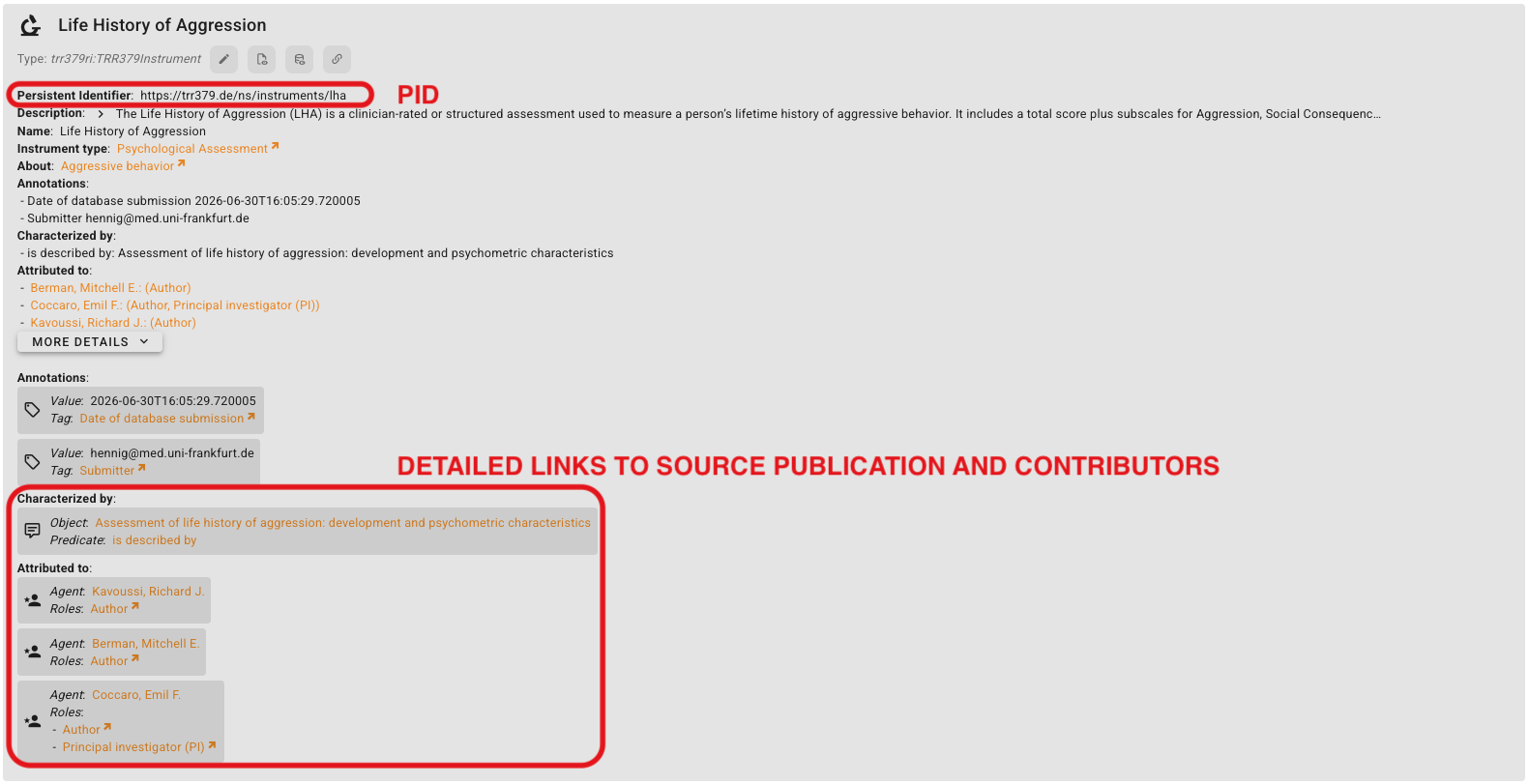
Add source documentation and contributors: Within the “Attributed to” box, select “Person” from the dropdown menu. Search for or add the author that contributed to the Instrument you are documenting. You can additiomal link the source documentation by adding to the “Characterized box” a new item with the Predicate, “is described by”, and the Object linking to the relevant Publication.
Add derivations for variants: Within the “Derived from” box, select the linked Instrument record from the drop down menu. Click the pencil icon to the right of the box to add the “Generated by” relationship. For example, a TRR379 questionnaire might be derived from the original instrument through the “Activity”, “Translation”. Click “SAVE” in the top-right corner to save the derivation information.
Add revisions for different versions: Within the “Revision of” box, select “ADD NEW ITEM”. Within the “Entity” box, select the instrument your record is a revision of. For example, a second version of a TRR379 questionnaire is a revision of the first version of that TRR379 questionnaire. Click “SAVE” in the top-right corner to save the revision information.
Value encodings
For counts, select the “Count” Concept within the “About” box’s dropdown menu and “range (value type): nonNegativeInteger” from the “Characterized by” box’s dropdown menu.
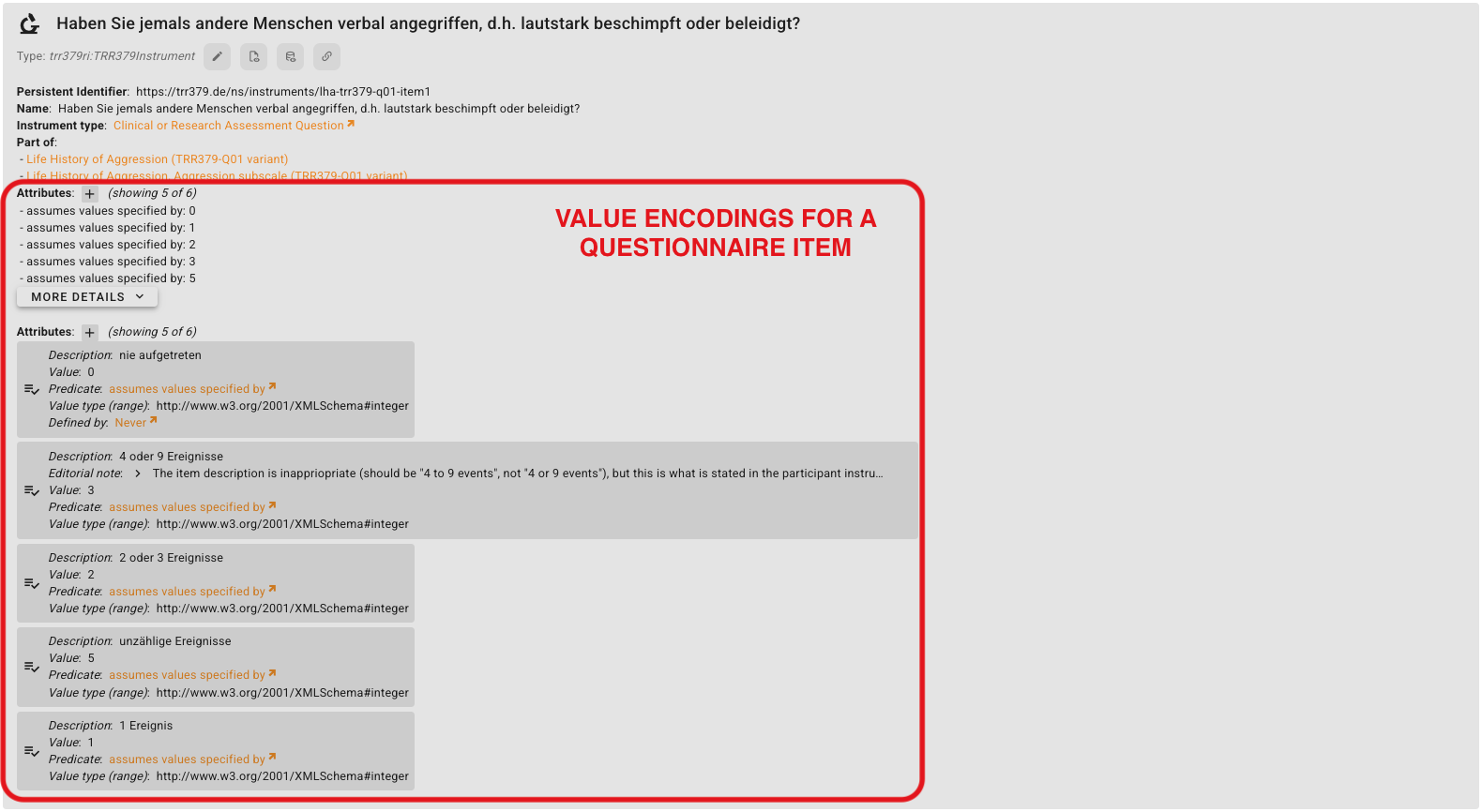
For categorical values, select “ADD NEW ITEM” within the “Attributes” box. At a minimum enter the “Value” and its “Description”. Select “assumes values specified by” within the “Predicate” box. Optionally, you can add semantics for “Defined by” and “Value type (range)” when appropriate.
Work with raw MRI data
Magnetic resonance imaging is an essential data acquisition method for TRR379.
Four sites acquire such data.
Each site has (different) established routines and conventions.
This documentation collects resources and best practices that can be adopted by TRR379 members.
Converting the heterogeneous, site-specific raw MRI data acquisitions into a standardized dataset is an essential precondition for the collaborative work in TRR379.
It readies the data for processing with established pipelines, and applies a pseudonymization as a safeguard for responsible use of this personal data.
The conversion of raw MRI data in DICOM format to a BIDS-compliant dataset is a largely automated process.
The recommended software to be used for conversion is heudiconv.
Heudiconv uses dcm2niix as the actual DICOM→NIfTI converter.
Heudiconv tutorials further illustrate how the software works.
Heudiconv performs the task of mapping DICOM series to BIDS entities (ie. determining BIDS-compliant file names).
A key heudiconv concept is a heuristic: a Python program (function) which receives the DICOM series properties and matches them with a file naming pattern.
A heuristic typically relies on DICOM series naming (set at the scanner console), but it can also use other properties such as number of images or acquisition parameters.
Heudiconv workflows have been implemented at each MRI acquisition site, and reuse shared components.
q02/rdmtools contains Python scripts which further automate BIDS conversion, pushing created datasets to dedicated locations, and other data curation tasks.
Each site maintains its own copy of the heuristic (as part of the site-specific DICOM superdataset) to account for site-specific differences.
Details
Modular datasets
A DataLad dataset containing a BIDS dataset will typically have these subdatasets.
Subdatasets help in recording provenance while enabling different access scopes for different components:
The online survey app contains background information on the survey itself, tooling used to digitalize survey submissions, and documentation on how to fill out the survey.
Survey participation requires an account on the TRR379 Hub.
If you do not yet have a Hub account, please follow the how-to guide on getting an account before beginning the survey.
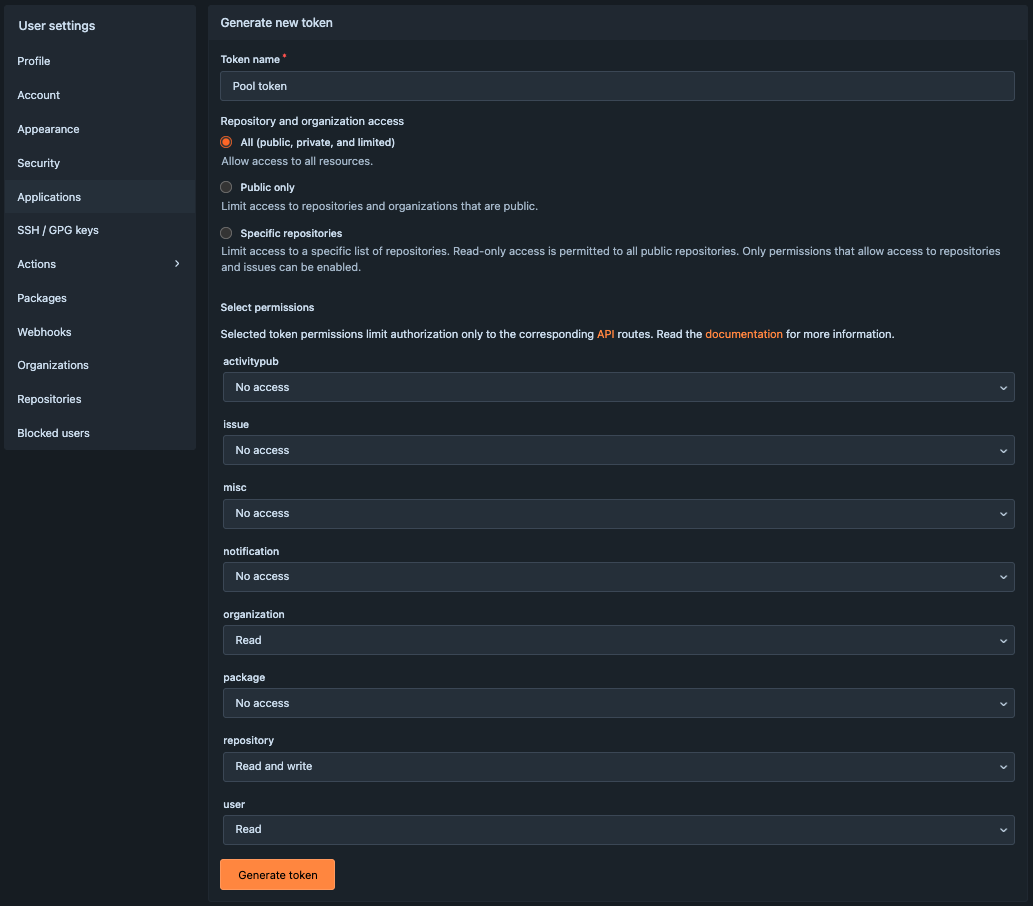
Under Access tokens click New access token, and fill in the form:
Give the token a recognizable name (e.g., “Pool token”)
Choose All for Repository and organization access
Under Select permissions, enable: organization: Read, repository: Read and write, and user: Read.
Click Generate token.
The token appears as a long string. Copy the generated value immediately, and store it safely. It disappears after refreshing.
Important
Treat your token like a password; do not share it publicly. Once generated, the same token can be reused for all future sessions.
Deploy services
Subsections of Deploy services
Dump-things API
The metadata service is a small application built on FastAPI that can be deployed running in a virtual environment, managed by Hatch – running under an unprivileged user account. This scenario is described here. However, any other deployment approaches suitable for Python-based applications may work just as fine.
Required software
The only software that is required outside the virtual environment (and the web server) is pipx, which is used to deploy hatch for a user – no need for administrator privileges otherwise.
sudo apt install pipx --no-install-recommends
User account setup
Here we set up a dedicated user dumpthing to run the service.
However, the service could also run under any other (existing) user account.
# new user, prohibit login, disable passwordsudo adduser dumpthing --disabled-password --disabled-login
# allow this user to run process while not logged insudo loginctl enable-linger dumpthing
# allow this user to execute systemd commands interactively.# this needs XDG_RUNTIME_DIR define.# the demo below is for ZSHsudo -u dumpthing -s
cd
echo 'export XDG_RUNTIME_DIR="/run/user/$UID"' >> ~/.zshrc
# put `hatch` in the PATH for convenienceecho 'export PATH="/home/dumpthing/.local/bin:$PATH"' >> ~/.zshrc
Service environment setup
Everything in this section is done under the target user account.
Use something like sudo -u dumpthing -s to enter it.
# install `hatch` to run the service in a virtual environmentpipx install hatch
# obtain the source code for the servicegit clone https://hub.trr379.de/q02/dump-things-service.git
# obtain the dataset with the (curated) metadata to be served# by the servicegit clone https://hub.trr379.de/q02/trr379-knowledge.git curated_metadata
# set up a directory for receiving metadata submissions# each subdirectory in it must match a "token" the needs to be# presented to the service to make it accept a record posting.mkdir token_realms
# the service expects a particular data organization.# we opt to create a dedicated root directory for it,# and symlink all necessary components into itmkdir server_root
ln -s ../curated_metadata/metadata server_root/global_store
ln -s ../token_realms server_root/token_stores
# now we can test-launch the servicehatch run fastapi:run --port 17345 /home/dumpthing/server_root
If the service comes up with no error, we can ctrl-c it.
Service management with systemd
We use systemd for managing the service process, the launch, and logging.
This makes it largely unnecessary to interact with hatch directly, and allows for treating the user-space service like any other system service on the system.
The following service unit specification is all that is needed.
With this setup in place, we can control the service via systemd.
# launch the servicesystemctl --user start dumpthing
# configure systemd to auto-launch the service in case of a# system rebootsystemctl --user enable dumpthing.service
Web server setup
Here we use caddy as a reverse proxy to expose the services via https at metadata.trr379.de.
# append the following configuration to the caddy configcat << EOT >> /etc/caddy/Caddyfile
# dumpthings service endpoints
metadata.trr379.de {
reverse_proxy localhost:17345
}
EOT
A matching DNS setup must be configured separately.
Afterwards we can reload the web server configuration and have it expose the service.
# reload the webserver config to enable the reverse proxy setup# (only necessary once)sudo systemctl reload caddy
Updates and curation
Whenever there are updates to the to-be-served curated metadata, the setup described here only required the equivalent of a git pull to fetch these updates from the “knowledge” repository.
When records are submitted, they end up in the directory matching the token that was used for submission.
Until such records are integrated with the curated metadata in global_store, they are only available for service requests that use that particular token.
An independent workflow must be used to perform this curation (acceptance, correction, rejection) of submitted records.
Neurobagel
NeuroBagel is a collection of containerized services that can be deployed in a variety of way.
This page describes a deployment using podman and podman-compose that is confirmed to be working on machine with a basic Debian 12 installation.
The following instruction set up a “full-stack” NeuroBagel deployment.
The contains all relevant components
query front-end
federation API
node API
graph database
This setup is suitable for a self-contained deployment, such as the central TRR379 node.
Other deployments may only need a subset of these services.
On the target machine, NeuroBagel services will run “rootless”. This means they operate under a dedicated user account with minimal privileges.
Required software
Only podman, and its compose feature are needed.
They can be installed via the system package manager.
sudo apt install podman podman-compose
User setup
We create a dedicated user neurobagel on the target machine.
NeuroBagel will be deployed under this user account, and all software and data will be stored in its HOME directory.
# new user, prohibit login, disable passwordsudo adduser neurobagel --disabled-password --disabled-login
# allow this user to run process while not logged insudo loginctl enable-linger neurobagel
# allow this user to execute systemd commands interactively.# this needs XDG_RUNTIME_DIR define.# the demo below is for ZSHsudo -u neurobagel -s
cd
echo 'export XDG_RUNTIME_DIR="/run/user/$UID"' >> ~/.zshrc
exit
Configure NeuroBagel
In the HOME directory of the neurobagel user we create the complete runtime environment for the service.
All configuration is obtained from a Git repository.
# become the `neurobagel` usersudo -u neurobagel -s
cd
# fetch the setupgit clone https://hub.trr379.de/q02/neurobagel-recipes recipes
# create the runtime directorymkdir -p run/data/
mkdir -p run/secrets/
# copy over the demo data for testing (can be removed later)cp recipes/data/* run/data
# generate passwords (using `pwgen` here, but could be any)pwgen 201 > run/secrets/NB_GRAPH_ADMIN_PASSWORD.txt
pwgen 201 > run/secrets/NB_GRAPH_PASSWORD.txt
# configure the the address of the "local" NeuroBagel# node to querycat << EOT > recipes/local_nb_nodes.json
[
{
"NodeName": "TRR379 central node",
"ApiURL": "https://nb-cnode.trr379.de"
}
]
EOT
Web server setup
NeuroBagel comprises a set of services that run on local ports that are routed to the respective containers.
Here we use caddy as a reverse proxy to expose the necessary services via https at their canonical locations.
# append the following configuration to the caddy configcat << EOT >> /etc/caddy/Caddyfile
# neurobagel query tool
nb-query.trr379.de {
reverse_proxy localhost:13700
}
# neurobagel apis
# graph db api not exposed at 13701
nb-cnode.trr379.de {
reverse_proxy localhost:13702
}
nb-federation.trr379.de {
reverse_proxy localhost:13703
}
EOT
A matching DNS setup must be configured separately.
Manage NeuroBagel with systemd
We use systemd for managing the NeuroBagel service processes, the launch, and logging.
This makes it largely unnecessary to interact with podman directly, and allows for treating the containerized NeuroBagel like any other system service.
The following service unit specification is all that is needed.
With more recent versions of podman and podman-compose better setups are possible.
using podman version.
However, this one is working with the stock versions that come with Debian 12 (podman 4.3.1 and podman-composer 1.0.3) and requires no custom installations.
mkdir -p .config/systemd/user/
cat << EOT > .config/systemd/user/neurobagel.service
[Unit]
Description=NeuroBagel rootless pod (podman-compose)
Wants=network-online.target
After=network-online.target


[Service]
Type=simple
WorkingDirectory=/home/neurobagel/recipes
EnvironmentFile=/home/neurobagel/recipes/trr379.env
ExecStart=/usr/bin/podman-compose -f ./docker-compose.yml up
ExecStop=/usr/bin/podman-compose -f ./docker-compose.yml down

[Install]
WantedBy=default.target
EOT
Launch
With this setup in place, we can launch NeuroBagel
# reload the webserver config to enable the reverse proxy setup# (only necessary once)sudo systemctl reload caddy
# launch the service (pulls all images, loads data, etc).# after a minutes the service should be upsystemctl --user start neurobagel
# configure systemd to auto-launch NeuroBagel in case of a# system rebootsystemctl --user enable neurobagel.service
Support
The Q02 project is happy to assist with any questions about the consortium’s digital infrastructure or related to research data management workflows.
Please feel free to use the following channels, depending on the problems you are encountering.
DataLad resources
DataLad is extensively documented in a dedicated DataLad Handbook that is targeting both novice and experienced users.
The DataLad YouTube channel provides videos on conceptual overviews, detailed tutorials, and technical talks on the software.
The materials from workshops are available online.
The Knowledge Base from the Psychoinformatics group at FZJ provides a collection of particular solutions or outcomes of past technical investigations, presented as short documents, which are too narrow-scoped to fit elsewhere.
The Jitsi meeting link is in the channel description (info icon in the top-right corner).
DataLad (and beyond)
There are virtual office hours every Monday at 14:00 CE(S)T.
This is a great opportunity to discuss problems and solutions with the members of the Psychoinformatics Group at FZJ.
To join:
The link to the Jitsi meeting will be in the channel description, but you are welcome to ask questions in the chat at any time.
If there are changes regarding the office hour they are communicated in the matrix chat room.
Hub issues
For specific problems and requests, opening a new issue in the appropriate repository on the TRR379 Hub is the best way to create a recorded history, particularly when lengthier discussions and/or multiple viewpoints might be necessary.
In particular, the all/status repository’s issue tracker is a good place to report issues.
E-mail
trr379@lists.fz-juelich.de is the consortium mailing list for any general or specific (e.g., admin-level and account-related) issues.
It is monitored by a subset of members of the Q02 project team based at Forschungszentrum Jülich, led by Michael Hanke.
Subsections of Support
Tips for the Knowledge Pool
To assist with common issues you may encounter while working with the knowledge pooling tool, and more specifically with its web UI, we have compiled some tips and common errors related to the pool.
Tips
It is highly recommended to use the knowledge pool’s web UI with a desktop browser; the form offers rich contextual information that is hard to access on mobile devices.
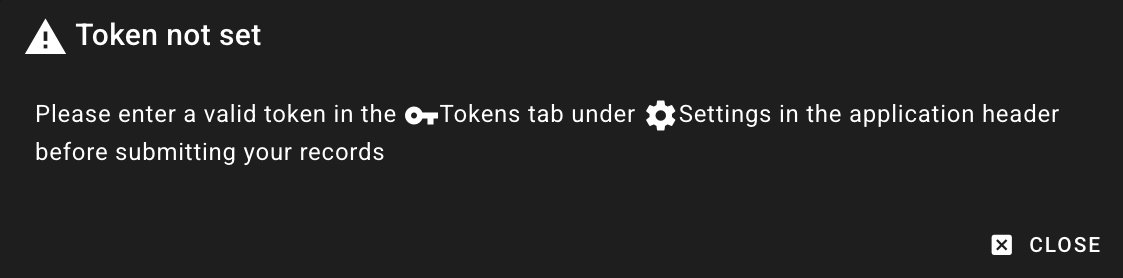
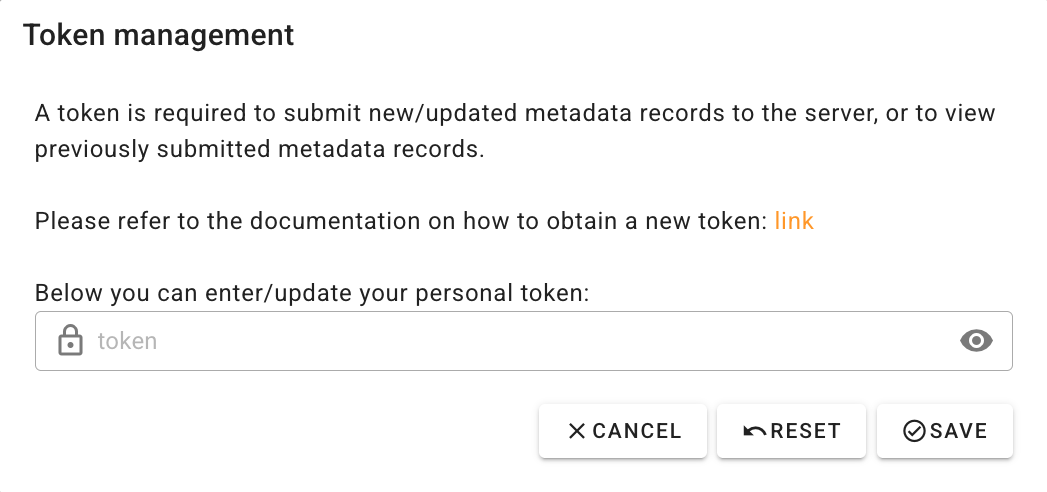
Submitting records will only be possible by logging in via your TRR379 hub account or using a valid access token; the token can be entered by navigating to “Settings” (gear icon) and then pasting your token in the “TOKENS” tab.
When editing records, you can hover your mouse pointer over field labels to display help text describing expected values and controlled vocabularies.
For some fields (e.g., journal name when filling out a Publication record), one or more choices have to be selected. The selector offers type-ahead search of choices. When searching:
Try entering full names instead of abbreviations.
If an item is not found in one language, try searching its English version.
Some items might also be searchable by a persistent identifier (e.g., ORCID, DOI, ISSN).
Wait a few seconds for choices to populate before creating a new record; search results may take time to load.
Submitting metadata involves two different actions: local saves and submitting to the server. Note that saving only stores information in the local browser session; you must submit your changes (using the cloud icon in the top-right corner) to make your records visible to consortium workflows.
Common errors
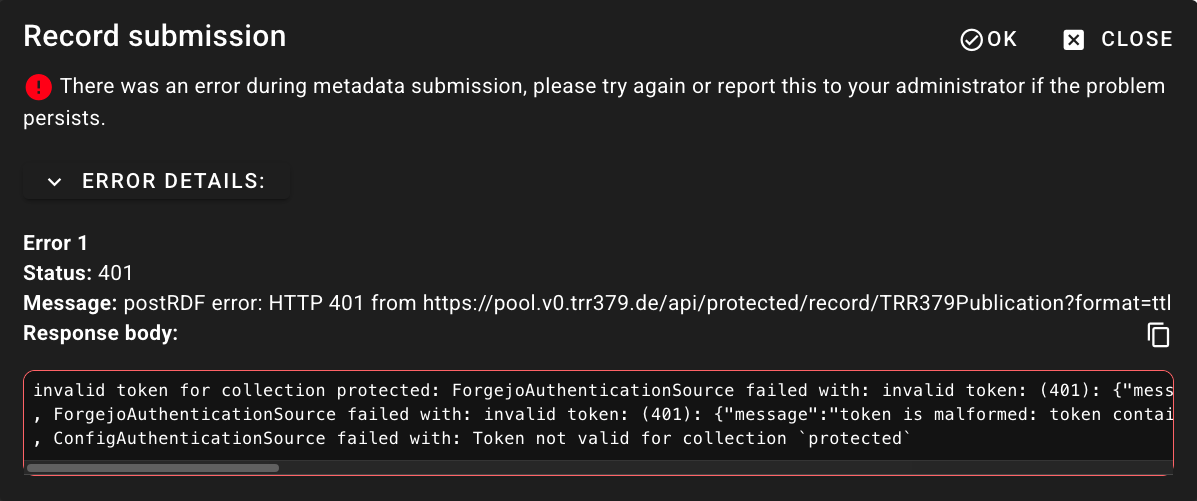
Authorization issues: If the access token you are providing is incorrect or your account does not have appropriate permissions, the interface may display one or more of the following errors during metadata retrieval or submission:
Incomplete information: If a metadata record is missing required information, you will not be able to save it. Required fields - highlighted with a red asterisk - and an warning sign will alert you to this.
Internal errors: If there is an unexpected error during metadata submission, the submission interface will report technical information. Please contact the Q02 project team and copy the entire error message.
Contributing
TRR379 infrastructure and its documentation and content are developed collaborately.
You can contribute by suggesting improvements and/or updating documentation and website content.
Have you noticed that something in the documentation is missing or out-of-date?
If so, then we welcome your contributions, be it by suggesting improvements or editing the docs directly.
Please have a look at the open issues to see if your question/comment/discussion point has been brought up before.
If not, please create a new issue for discussion.
Edit the docs
The documentation site is built with Hugo and stored as a DataLad dataset.
Each page provides an edit button (pencil icon) that enables editing content directly in the browser.
Note
Once a change has been submitted, it is not reflected on the website immediately.
All changes are reviewed and possibly adjusted by members of the Q02 and Q04 teams.
Edit the website
The main TRR379 website is updated on a regular basis.
Much of the content, including contributor and publication lists, updates automatically whenever member submit information through the knowledge pooling tool.
Website updates should therefore happen through the metadata pooling system wherever possible.
If you would like to report an error, request an update, or start any other discussions related to the website, browse the open issues;
if your discussion point is not already listed, please open a new issue.
For those who need to edit the website directly (e.g., to add news items), the site is built with Hugo and stored as a DataLad dataset, meaning all changes are version-controlled.
The repository README contains instruction on how to obtain a clone of the website for working on it, and testing it locally.
Image requirements: All images must be added using DataLad (datalad save -m "message") or git-annex (git annex add <file>), and never with a plain git add.
Page thumbnails should be a minimum of 320 by 240 pixels with an aspect ratio of 4:3.
Alternatively:
Make small edits directly on the collaboration hub.
Each page provides an edit button (pencil icon) that enables editing content directly in the browser.
Note
Once a change has been submitted, it is not reflected on the website immediately.
All changes are reviewed and possibly adjusted by the website editor team of the Q04.
The planned RDM infrastructure is a federation of interoperable site
infrastructures. The key design principle is that no primary data are
aggregated to a central infrastructure.
We aim to establish an infrastructure that is suitable for use within the
TRR379, but not limited to this scope. Once deployed, the associated services
are usable beyond the scope of TRR379.
The following schema sketches the planned infrastructure. Components
that hold (primary) data are depicted in yellow. Components that hold
(mostly or exclusively) metadata are shown in blue. The direction of
information flow is indicated by arrows, exchange of data by solid arrows,
and metadata-only exchange by dotted arrows. Infrastructures that are
only accessible to authorized agents are labeled with a “lock” symbol.
Further details on individual components are provided below.
graph TB;
    subgraph Central services
        C1[("Collaboration portal<br>hub.trr379.de<br> 🔐")]:::meta
        C2{{"Data search<br>query.trr379.de<br> 🔐"}}:::meta
        C3(Main website<br>www.trr379.de):::meta
        C4("Data catalog<br>data.trr379.de"):::meta
    end
    subgraph "Aachen 🔐"
        A1[(hub)]:::data
        A1a[(lab1)]:::data
        A1b[(lab2)]:::data
        A2{{query}}:::meta
    end
    subgraph "Frankfurt 🔐"
        F1[(hub)]:::data
        F2{{query}}:::meta
    end
    subgraph "Heidelberg 🔐"
        H1[(hub)]:::data
        H1a[(ZI-hub)]:::data
        H1b[(lab1)]:::data
        H2{{query}}:::meta
    end
    A1 -.-> C1
    A1a -.-> A1
    A1b <---> A1
    A1 -.-> A2
    A2 <-.-> C2
    F1 -.-> C1
    F2 <-.-> C2
    F1 -.-> F2
    C3 <-.-> C1
    C3 -.-> C2
    H1 -.-> C1
    H1a <-.-> C1
    H1a <-.-> H1
    H1b <---> H1
    H1 -.-> H2
    H2 <-.-> C2
    C1 -.-> C2
    C1 -.-> C4
    C3 -.-> C4
    H1b <---> A1a
    %% node links to actual services
    click C1 href "https://hub.trr379.de"
    click C3 href "https://www.trr379.de"
    %% classes to distinguish data and metadata nodes
    classDef data fill:#ffa200,color:#000
    classDef meta fill:#5C99C8,color:#000
    %% invisible link purely for manipulating the grouping
    C2 ~~~ A1b
    C4 ~~~ A1b
    C2 ~~~ F1
    C2 ~~~ H1b
Central services
All central services a metadata-focused. No primary data acquired at
participating sites are aggregated into central databases/storage.
Collaboration portal (hub.trr379.de)
This is the main hub for collecting actionable links to all TRR379 resources
and information. The software solution for this hub is
Forgejo-ankesajo. It is a free
and open-source software package, and the direct service counterpart of
DataLad, the main tool proposed for implementing
reproducible research workflows in TRR379 labs.
The hub will store DataLad datasets, referencing all TRR379 data resources
without hosting any actual data. Instead the DataLad dataset point to the
individual institutional data stores, or to community data repositories when
and where data have been published.
The hub is also a place to deposit (shared) computational environments, and
implementations of (shared) data processing pipelines, software publications,
and source code repositories under a uniform TRR379 umbrella.
See this page for a description of the main website.
Importantly, the website renders essential metadata for the TRR379
(contributors, roles, publications, projects, research topics, etc.) It
provides a unique
URI for any such
entity, to be used as identifiers in all TRR379 (meta)data resources.
The TRR379 data catalog is a website dedicated to providing a uniform
(read-only) view on the TRR’s data resources. It is rendered programmatically by
DataLad Catalog from metadata on
TRR379 data resources hosts in the TRR379 hub.
This site is indexed by specialized search engines like Google’s dataset
search and a key enabler
for general findability of TRR379 resources.
Data search
This is a federated data discovery service that is tailored to the cohort dataset
acquired by TRR379 as a whole. It will enable the discovery of individual data records
matching a given set of criteria, regardless of the contributing TRR379 site.
The service is federated. Each sites runs their own instance, and has the sole
authority on deciding what metadata are shared with other TRR379 sites. Only
these metadata property will be accessible by TRR379 at large, while more
detailed metadata records can be use for in-house queries.
The proposed solution for the query service is a version of
NeuroBagel adapted to the data nature and needs
of TRR379.
Site infrastructure
Sites are free to implement any RDM solutions, as long as that infrastructure
provides
(programmatically) queryable metadata of a previously agreed upon nature
(programmatically) accessible data to any authorized members of TRR379
with the aim to enable reproducible research from primary data to published
results within and across TRR379.
Q02 supports sites with software solution
that facilitate interoperability within TRR379. This includes the local
deployment of the software systems used to run the central services.
We aim at individual sites running their own data hubs (using the same software
solution) as the central https://hub.trr379.de. In contrast to the central hub,
these institutional sites can directly use the storage features of
Forgejo-ankesajo, and host
arbitrary amounts of data. TRR379 can communicate data availability using a
federation protocol.
Services
The Q02 project operates a network of RDM-related services supporting the TRR379. They are described in more detail in the following sections.
graph TB;
    subgraph Central services
        C1[("Collaboration portal<br>hub.trr379.de<br> 🔐")]
        C2{{"Cohort search<br>nb-query.trr379.de<br> 🔐"}}
        C3("Main website<br>www.trr379.de")
        C4("Data catalog<br>data.trr379.de")
        C5[("Knowledge pool<br>pool.trr379.de<br> 🔐")]
        C6("Documentation<br>docs.trr379.de")
        C7("Data models<br>concepts.trr379.de")
    end
    U1(("General Public"))
    U2(("TRR379 member"))
    C1 --> C3
    C1 --> C6
    C1 --> C7
    C1 --> U2
    C2 --> U2
    C3 --> U1
    C4 --> U1
    C5 --> C1
    C5 --> C2
    C5 --> C4
    C5 --> C3
    C5 --> U1
    C5 --> U2
    C6 --> U2
    C7 --> C5
    U2 --> C1
    U2 --> C5
Subsections of Services
Matrix Space
The TRR379 has a dedicated space at https://app.element.io/#/room/!YTyCzxGsutdlGNxjGj:matrix.org on Matrix, an open, free, and encrypted messaging platform with unlimited history.
It is intended as an informal place to exchange information, get faster feedback, and connect with people working on the same topics across sites.
Joining is entirely voluntary.
To join the space, you need a Matrix account.
Many institutions provide their own homeservers for setting up institutional accounts.
If not, anyone can create a free account at https://app.element.io/.
The TRR379 Matrix space is only for TRR379 consortium members.
To get access, email trr379@lists.fz-juelich.de with your Matrix account name included, or contact @mih:matrix.org directly on matrix.
Calendars
TRR379 uses a dedicated CalDAV server at https://cal.trr379.de. This service
can be used to host any number of online calendars. Individual calendars
can be configured to be publicly accessible, or only for internal
(authenticated) consumption.
Internal calendars
Any number of non-public calendars can be created and shared with specific
audiences. This can be useful to coordinate data acquisition sessions,
organize room bookings, or schedule slots for internal meetings and events.
Contact the management team to request a dedicated calendar.
Public calendars
All public calendars are available via CalDAV URL and can be included in any
calendar solution, such as Google calendar.
The URLs follow the pattern https://cal.trr379.de/public/<name>,
where <name> is the calendar name, as stated in the list below. For the
events calendar this is https://cal.trr379.de/public/events.
For use with Google calendar, replace https:// with webcal://. For example,
the events calendar can be added to Google calendar with the URL
webcal://cal.trr379.de/public/events.
https://hub.trr379.de is the central (data) collaboration site of the consortium.
It runs an enhanced variant of the Forgejo software that is designed for maximum interoperability with the RDM solution DataLad.
The main difference to the Gitlab solution – that is also employed by TRR379 for internal purposes – is the ability to also host arbitrarily large data on the same site.
The integration with the git-annex software makes it ideal for the federated, multi-site nature of TRR379.
The full software-stack is free and open source software, and can be deployed at any collaborating site with minimal effort.
This aspect is essential for supporting the decentralized RDM approach of the TRR.
Any contributor can have an account on the central hub.
Please contact the Q02 team to get set up.
Knowledge Pooling Tool
The knowledge pooling tool is a system used for aggregating information on research progress and outputs across TRR379 partner sites and projects.
It comprises:
A web UI for submitting, editing, and browsing records such as people, projects, and publications
A backend API allowing scripts and applications to contribute or retrieve metadata
OAuth 2.0 and token-based authentication that integrates with Forgejo teams on the collaboration platform to manage read and write permissions
The current (generation v0) tool can be accessed at:
Generate an Access Token on the Hub for generating a personal access token for authentication purposes, particularly when working with the programmatic API
shacl-vue Documentation (external link) for the documentation for the knowledge pool’s web UI.
This website is not just a public-facing view on the consortium. It is
specifically built to be the core component of the metadata concept of TRR379.
It provides a collection of canonical definitions of entities essential for the
function of TRR379. Such entities include
Any such entity has a dedicated page on the website, with a stable URL that
serves as a URI
for that entity. As such, these URLs can be used in any TRR379-related metadata
to declare relationships to TRR379 entities, for example, the authorship of
a publication, the origin project of a data release, etc.
The website is built with the static site generator Hugo.
It capitalized on its taxonomy
feature. Any page on the
site is built from a metadata record. For Hugo, this metadata is presented in
the form of a page’s front
matter. However, these metadata
may themselves be generated from the result of a database query.
Here is an example record for TRR379 spokesperson Ute Habel:
title: Ute Habelprojects:
- a02- a04- q01- q04sites:
- Aachen- Juelichroles:
- pi- spokespersonlayout: contributorparams:
orcid: 0000-0003-0703-7722name-title: Prof. Dr. rer. soc.affiliation: Department of Psychiatry, Psychotherapy and Psychosomatics, Faculty of Medicine, RWTH Aachen Universitysortkey: "Habel, Ute"<additional content on the page's subject>
From this information, the page that identifies and describes Ute
Habel as a spokesperson is
generated. It also links and references her record on the respective pages for
projects, sites, and roles she is associated with. Consequently, the URL
https://www.trr379.de/contributors/ute-habel/ can serve as a URI for Ute Habel
within the TRR379 metadata. Moreover, ute-habel is a unique identifier for her
as a contributor to TRR379.
While other special-purpose identification systems exist (e.g.,
https://orcid.org for academics), this approach is automatically applicable to
any concept and entity relevant to TRR379. Including roles, data acquisition
methods, instruments, etc. The domain root trr379.de represents a unique
namespace to define and reference any required entities. This enables a timely
and unencumbered development of a metadata concept for TRR379, without
hindering alignment with and mapping to more global efforts and initiatives.
Look
Structured metadata is rendered to an HTML website with Hugo using a
template. This approach separates
the information from its presentation.
The look of the website can be altered by adjusting the template, or switching
to a different template entirely. This requires familiarity with Hugo and its
templating mechanism.
https://data.trr379.de hosts the data catalog of the TTR379. This site is
currently work in progress, and will be published once the project
has started to accumulate data.
A data catalog is a website that displays and organises information that you provide about your collected datasets.
The purpose of a catalog is to make data more FAIR, specifcally more findable, even if they are access restricted.
The catalog further encourages collaboration between partner sites.
If all partners share a common data catalog which showcases their respective collected datasets, partners can more easily engage in potential collaborations with each other as they can see what data has already been collected at each site.
The data catalog only makes metadata (i.e. descriptive fields about your dataset) openly available, there is no need to make the actual data file content publicly accessible.
In other words, you do not need to upload sensitive data (or publicly available data, for that matter) anywhere in order for the dataset to be part of the catalog, just metadata.
Providing full access to a dataset, or merely to a limited description about a dataset is entirely within your control.
If a partner wishes to pursue a collaboration regarding a certain dataset, that partner will still need to follow the existing institutional routes of requesting access to your dataset.
You have FULL control over what information is displayed in the catalog, and if you want the data files to be publicly accessible or not.
Catalog sources follow a specific design and structure.
The main source of metadata for the data catalog is the DataLad dataset at ./data, also referred to as the catalog superdataset or the catalog homepage dataset.
The idea is that this superdataset acts as a container for the metadata of all new datasets that should be represented in the catalog.
In a typical catalog source repository, you will find the following structure:
./catalog - this is where the data catalog sources live - the live catalog site serves this directory
./code - this directory contains scripts that are used for catalog updates
./data - this is a DataLad subdataset of the current data-catalog dataset/repo - its origin is at: abcd-j/data - it functions as the superdataset for all datasets rendered in the catalog, i.e. it is the homepage of the catalog
./docs - documentation sources - contains documentation for catalog users and contributors
./inputs - input files used during catalog creation, updates, and testing
Cohort Data Discovery
https://nb-query.trr379.de hosts the central NeuroBagel query interface of the TRR379.
With this solution, data availability can be queried dynamically, to facilitate data access requests.
NeuroBagel supports federated queries and is therefore ideally suited for the decentralized research data management approach of TRR379.
Data Models
https://concepts.trr379.de hosts resources and documentation on the metadata models driving the research data management procedures of TRR379.
Documentation
https://docs.trr379.de (this site) is the main documentation source for the TRR379.
It offers information on facilities and procedures.
The website status.trr379.de provides a central
monitor for TRR379 services. In case of an outage (or a suspected outage), this site can be used to look for already known issues, or to report new ones.
Service outages and recoveries are also available as push notifications. Contact trr379@lists.fz-juelich.de to get access. A notification is pushed when a service failure is detected for more than two consecutive tests (typically a 10min interval).
Identifier Concept
Identifiers are an essential component of the TRR379 research data management (RDM) approach.
This is reflected in the visible organization of information on the consortium website, but also in the schemas that define the structure of metadata on TRR379 outputs.
Many systems for identifying particular types of entities have been developed.
A well-known example is DOI for digital objects, most commonly used for publications.
However, many others exist, like ROR for research organizations, or Cognitive Atlas for concepts, tasks, and phenotypes related to human cognition.
RDM in the TRR379 aims to employ and align with existing systems as much as possible to maximize interoperability with other efforts and solutions.
However, no particular identifier system is required or exclusively adopted by TRR379.
Instead, anything and everything that is relevant for TRR379 has an identifier in a TRR379-specific namespace.
Identifier persistence
TRR379 RDM heavily relies on persistent identifiers.
More or less anything and everything has, and must have, a persistent identifier.
This key constraint makes it possible for multiple actors to collaboratively, and simultaneously contribute metadata on arbitrary aspects – without having to wait and query for finished metadata records on associated entities.
TRR379 identifier namespace
TRR379 uses URIs as identifiers that map onto the structure of the main consortium website.
For example, the full TRR379 identifier for the spokesperson Ute Habel is https://trr379.de/contributors/ute-habel.
In this URI, https://trr379.de is the unique TRR379-specific namespace prefix, contributors/ute-habel is the TRR379-specific identifier for Ute Habel (where contributors is a sub-namespace for agents that in some way contribute to the consortium).
Even though Ute Habel can also identified by the ORCID0000-0003-0703-7722, via the quasi-standard identifier system for researchers, this alternative identifier is considered an optional, alternative identifier rather than a requirement for TRR379 RDM.
The reasons for this approach are simplicity, and flexibility.
An identifier in TRR379 RDM is a simple text label, in a self-managed namespace.
This self-managed namespace can cover any and all entity types that require identification with TRR379.
In many cases, an identifier directly maps to a page on the main consortium website.
This is a simple strategy to document the nature of any entity.
It also establishes the main website as a central, straightforward instrument for communicating and deduplicating identifiers in a distributed research consortium.
Alignment with other identifiers
Even though any relevant entity can receive a TRR379-specific identifier with the approach described above, the utility of these identifier is limited to TRR379-specific procedures and activities.
However, a TRR379 metadata record on a research site (e.g., https://trr379.de/sites/aachen ) can be annotated with any alternative identifier for the same entity (e.g., https://ror.org/04xfq0f34 ).
Thereby it is possible to combine the benefits of a self-governed, project-specific identifier namespace with the superior discoverability and interoperability of established identification systems for particular entities.
Identifiers for particular entities
The additional documentation linked below provides more information on particular identifiers used by TRR379.
This page is a more in-depth description of the rationale behind the SOP for participant identifiers used by TRR379.
Q1 participant identifiers
Q01 is the central recruitment project.
Any participant included in the core TRR379 dataset is registered with Q01 and receives an identifier.
This identifier is unique within TRR379 and stable across the entire lifespan of TRR379.
The dataset acquired by TRR379 is longitudinal in nature.
Therefore participants need to be reliably identified and re-identified for follow-up visits.
Because participants are not expected to remember their TRR379 identifier, it is necessary to store personal data on a participant for the time of their participation in data acquisition activities.
In order to avoid needlessly wide-spread distribution of this personal data, participant registration and personal data retention is done only at the site
where a person participates in TRR379 data acquisitions.
Each site:
issues TRR379-specific participant identifiers that are unique and valid throughout the runtime of TRR379
uses secure systems for this purpose, for example, existing patient information systems
is responsible for linking all relevant information that is required for reporting and data analysis within TRR379 to the issued Q01 identifier, so that all data can be identified and delivered upon request (e.g., link to brain imaging facility subject ID).
The site-issued identifiers have a unique, site-specific prefix (e.g., a letter like A for Aachen), such that each site can self-organize their own identifier namespace without having to synchronize with all other sites to avoid duplication.
The identifiers must not have any other information encoded in them.
Responsible use and anonymization of identifiers
The TRR379 participant identifiers, as described above, are pseudonymous.
Using these TRR379-specific identifiers only, for any TRR379-specific communication and implementations, is advised for compliance with the GDPR principles of necessity and proportionality of personal data handling.
This includes, for example, data analysis scripts that can be expected to become part of a more widely accessible documentation or publication.
Any TRR379 site that issues identifiers is responsible for strictly separating personal data used for (re-)identifying a participant, such as health insurance ID, government ID card numbers, or name and date of birth.
This information is linked to TRR379-specific identifiers in a dedicated mapping table.
Access to this table is limited to specifically authorized personnel.
When a participant withdraws, or when a study’s data acquisition is completed, the mapping of the TRR379 identifier to personal identifying information (1) is destroyed, by removing the associated record (row) from the mapping table.
At this point, the TRR379 identifier itself can be considered anonymous.
Consequently, occurrences of such identifiers in any published or otherwise shared records, or computer scripts need not be redacted.
The validity of the statement above critically depends on the identifier-issuing sites to maintain a strictly separate, confidential mapping of identifier to personal identifying information, and to not encode participant-specific information into the identifier itself.
Participant identifiers in A/B/C projects
For each project or study that is covered by its own ethics documentation and approval, separate and dedicated participant identifiers are used that are different from a Q01-identifier for a person.
This is done to enable such projects to fulfill their individual requirements regarding responsible use of personal data.
In particular, it enables any individual project to share and publish data without enabling trivial, undesired, and unauthorized cross-referencing of data on an individual person, acquired in different studies.
These project-specific identifiers are managed and issued in the same way as described above.
A project requests a project-specific identifier from the local site representative of Q01, by presenting personal identifying information.
This information is matched to any existing Q01-identifier, and a project-specific identifier is created and/or reported.
Any created project-specific identifier is linked to the Q01-identifier, using the same technical systems and procedures that also link other identifiers (e.g., patient information system record identifier).
Importantly, the mapping of the Q01-identifier and a project-specific identifier is typically not shared with the requesting project.
This is done to prevent accidental and undesired co-occurrence of the two different identifiers in a way that enables unauthorized agents to reconstruct an identifier mapping that violates the boundaries of specific research ethics.
Special-purpose identifiers
Sometimes it is necessary to generate participant identifiers that are not compliant with the procedures and properties described above.
For example, an external service provide may require particular information to be encoded in an identifier (e.g., sex, age, date of acquisition).
If this is the case, an additional identifier must be generated for that specific purpose.
Its use must be limited in time and it must not be reused for other purposes.
Identifier generation and linkage to the standard Q01-participant identifiers is done using the procedure described for project-specific identifiers above.
A Collaborative Research Centre (CRC) is a DFG (Deutsche Forschungsgemeinschaft) funded long-term university-based research institution, established for up to 12 years, in which researchers work together within a multidisciplinary research programme.
Collaborative Research Centres consist of a large number of projects; the number and scope of these projects depend on the research programme. Individual projects are led by one researcher or jointly by several researchers.
DFG
The German Research Foundation (Deutsche Forschungsgemeinschaft, DFG) is a German research funding organization.
OAuth 2.0
OAuth 2.0 is an open standard protocol for authorization that allows applications to access data on another service without directly handling passwords themselves.
RDM
Research data management (RDM) is the set of practices around handling research data throughout its lifecycle.
SOP
A standard operating procedure, mostly referred to as SOP, is a set of step-by-step instructions compiled to help carry out routine operations.
TRR
A Transregio (TRR) is a variant of a DFG (Deutsche Forschungsgemeinschaft) funded Collaborative Research Centre (CRC).
Whereas traditional collaborative research centres are proposed and carried out by one university, a CRC is proposed and carried out jointly by two or three universities.
It allows close cooperation between these institutions and the researchers based there, including the shared use of resources.
The contributions of the partner applicants are essential to the joint research goal, complementary and synergistic.